This page is archived for historical purposes. This feature was intended for v0.0.8.4, and was ultimately scrapped due to inconsistent performance, in-favour of optimising the manual mapper itself.
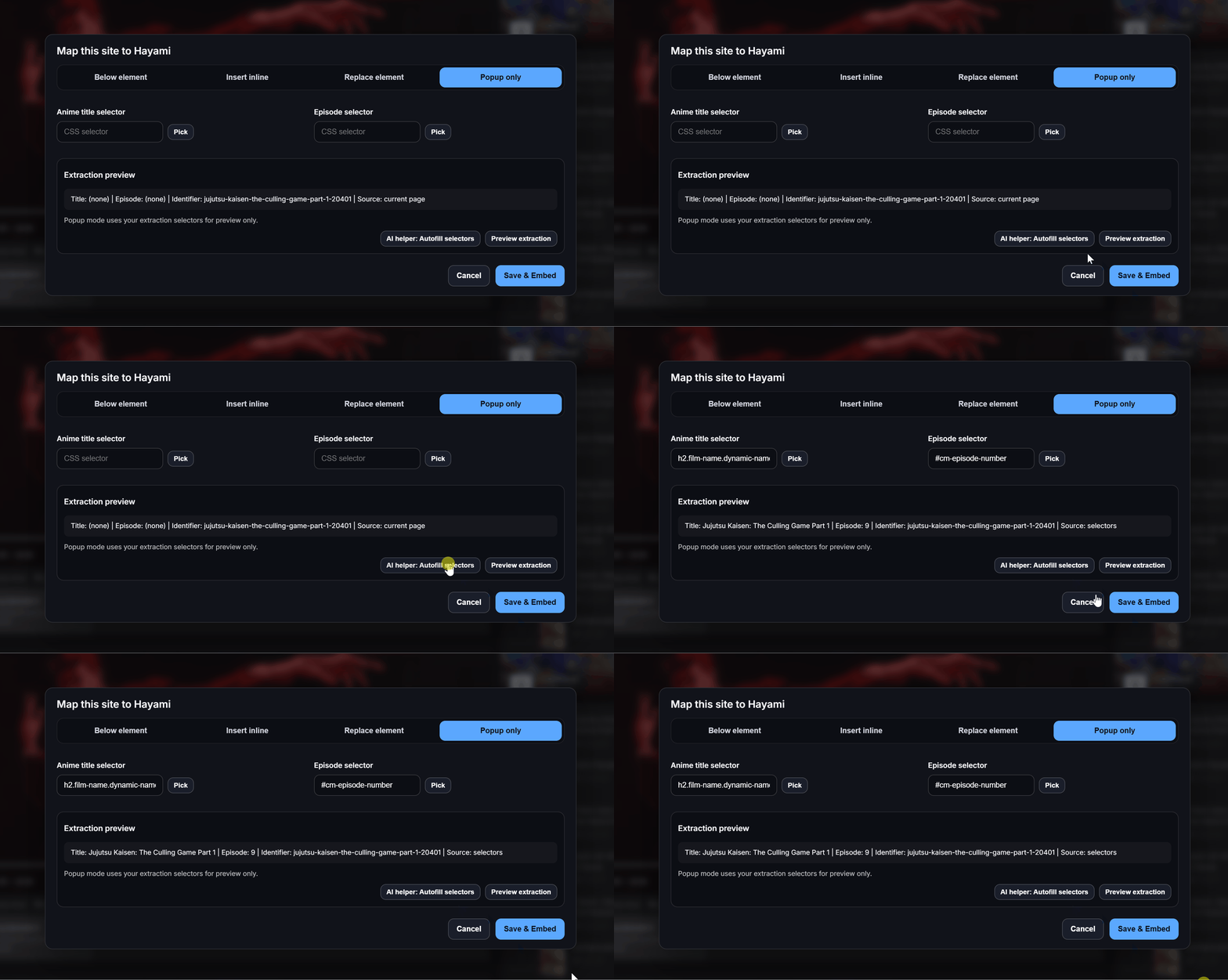
The site mapper AI assistant allows automatic retrieval of where anime names/episode numbers are on the page, letting you focus on where you want Hayami mounted instead. Out the box, Hayami supports Google AI Studio, Mistral AI, OpenRouter, and Gemini Nano (Chrome-only) pre-configured with models that do the job & prompt to extract what’s needed. Hayami also supports any OpenAI-compatible API, allowing you to freely self-host your own models (e.g. through Ollama) for a more privacy-respecting experience. Hayami attaches the page’s HTML to your chosen AI provider to undergo this extraction.
Aihelper Autofillmapping
Note: Third-party AI providers have their own terms & privacy policies on processing your data, which needs to be regarded before use of this feature.

Getting started

You’ll need an API key from your chosen provider to use this feature with third-party providers. A guide is below per-provider that Hayami supports to get these details.

Google AI studio

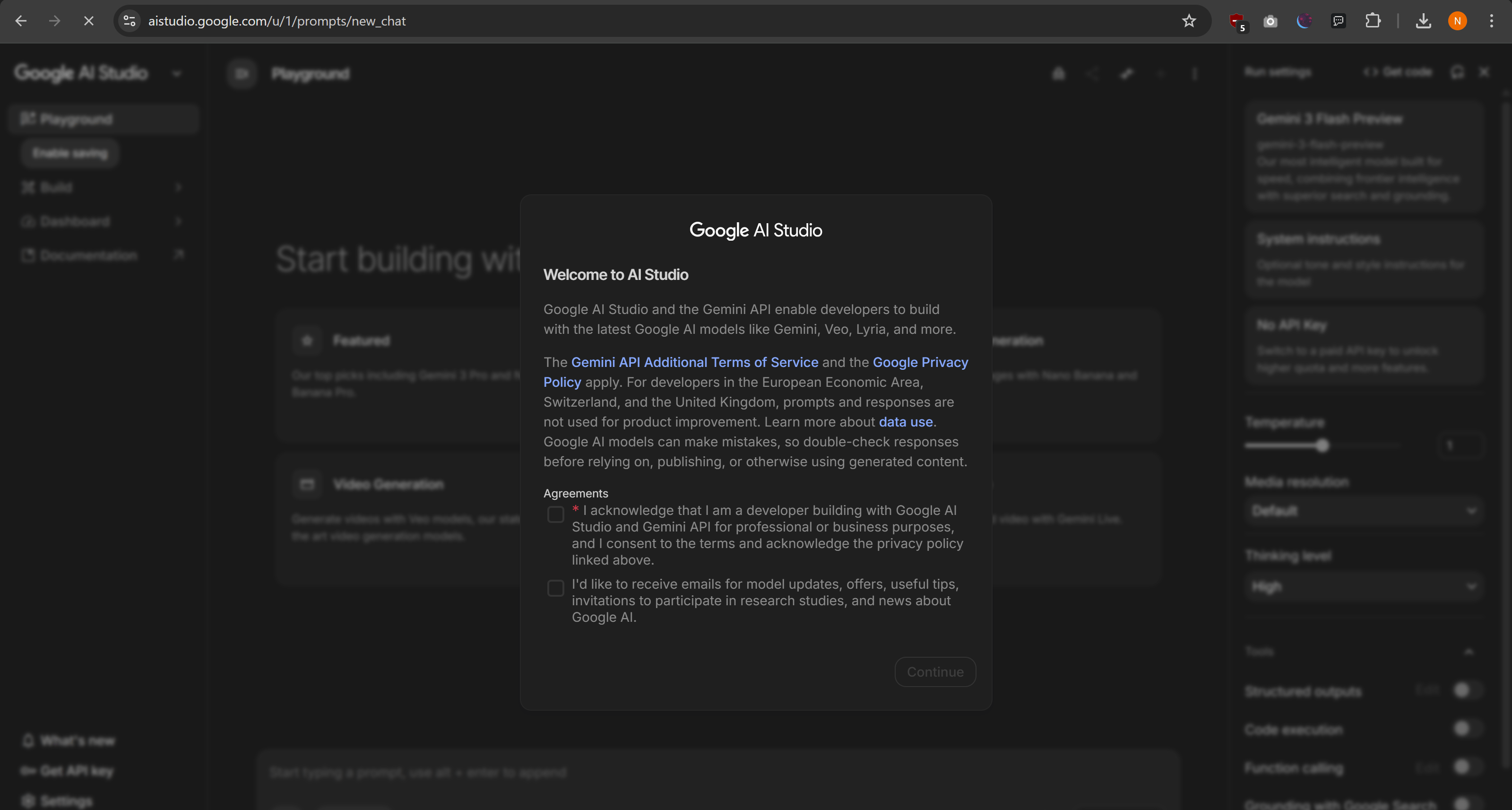
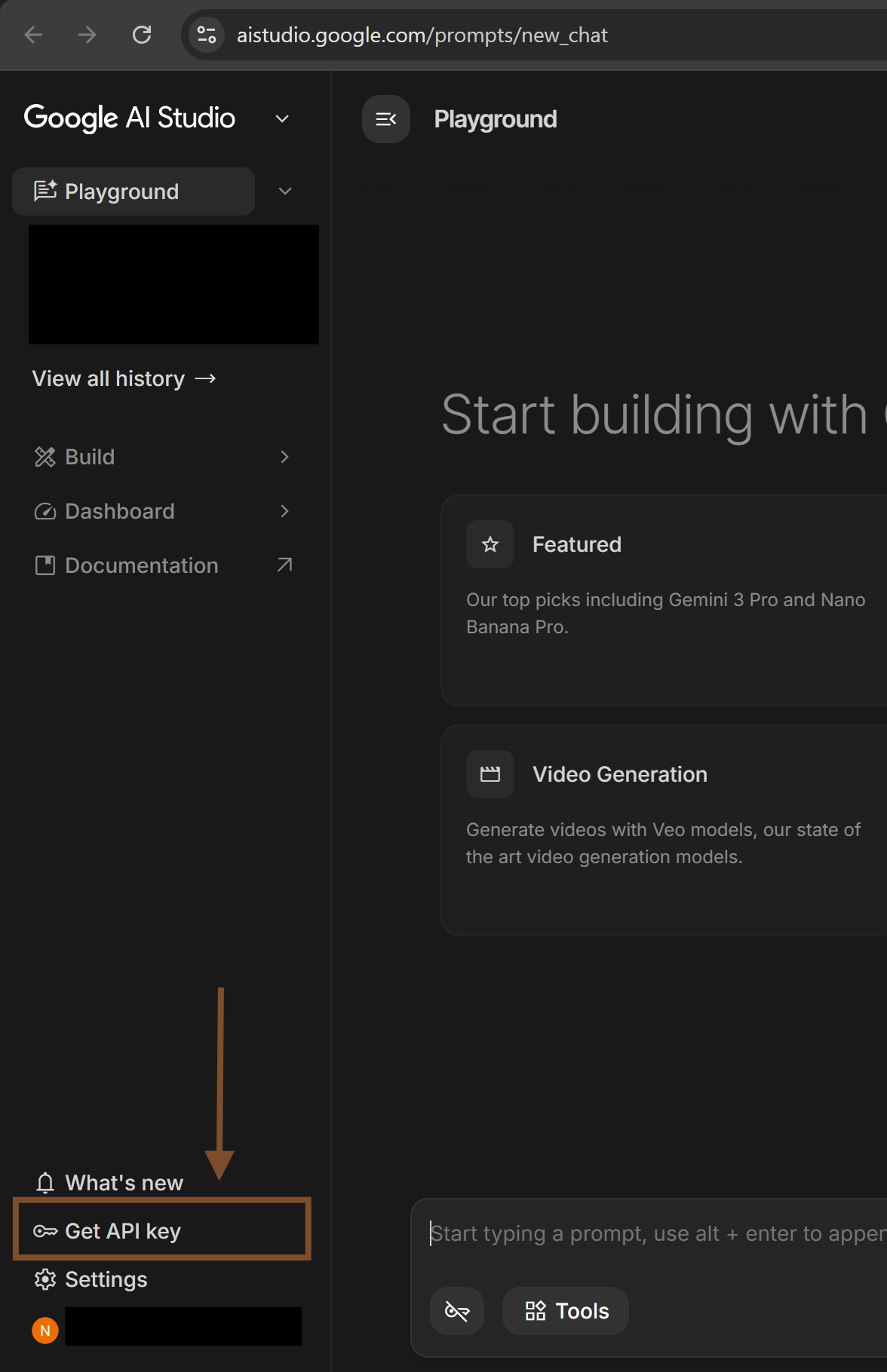
To get your API key, go to https://aistudio.google.com/, and click “Get API key”. You may have to do some initial onboarding, but Hayami only requires free-tier features, and does not require the paid-tier. This does not require entering billing information. If new to the platform, you may get presented with the screen below (the below screenshot is as-of-writing indicative of 18/03/2026 and may differ in-future). Once the terms and relevant details have been acknowledged, proceed to the next steps.
Image
Click “Get API key”. Wait for this page to load up.
Screenshot 2026 03 18 114014
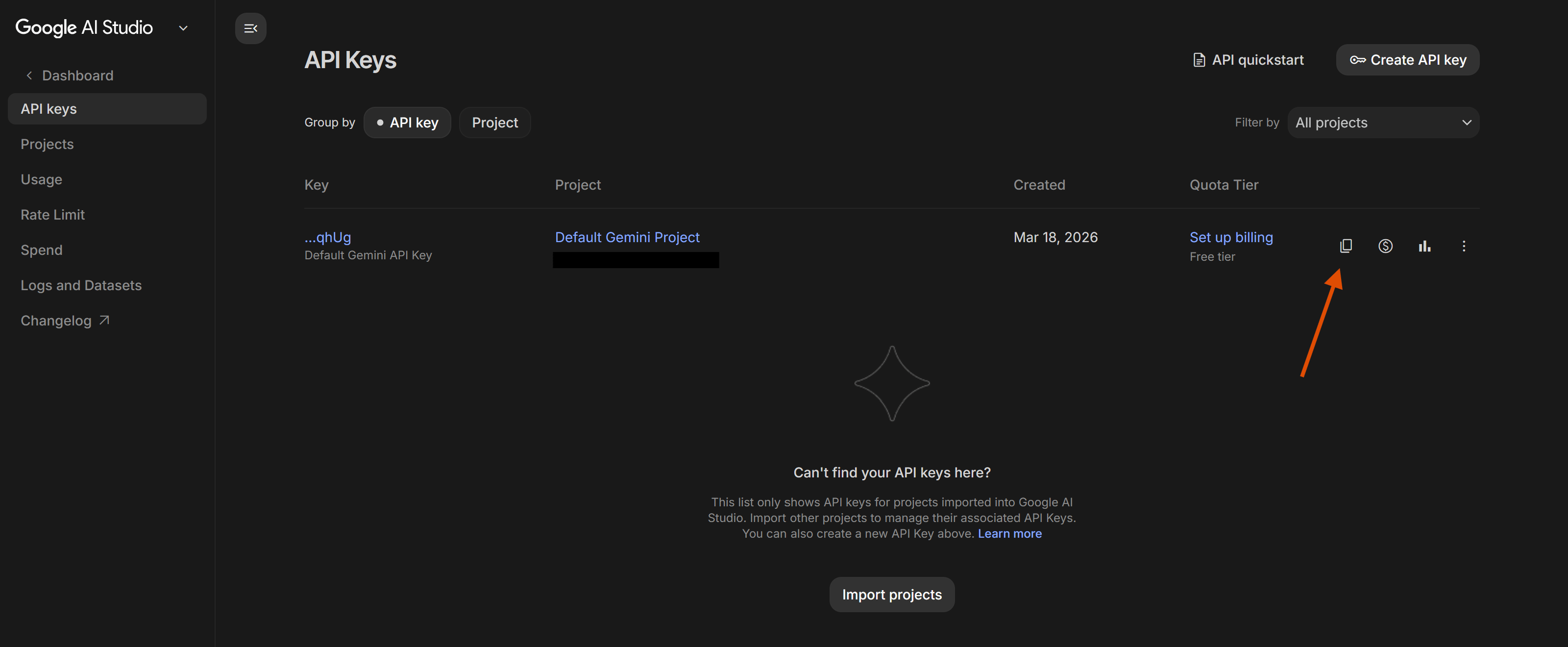
If you’re new to Google AI Studio, you should get an automatically-generated key for you, ready to be used. This key can be used straightaway. Click the Copy icon to copy this key. If you’d rather we create a key for Hayami, or this key isn’t showing, proceed to the steps below. If this key is adequate, scroll down past these steps below.
Image
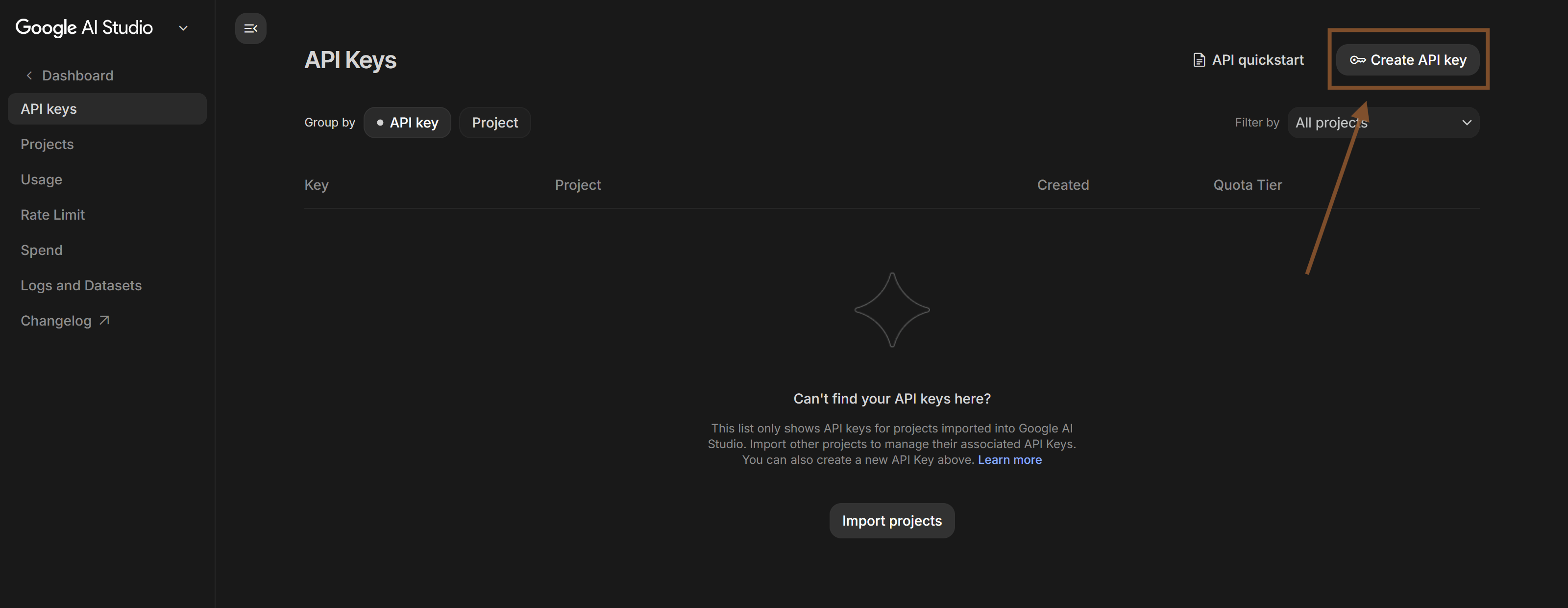
Proceed to create a key (specifically for Hayami): Click ‘Create API key’.
Image
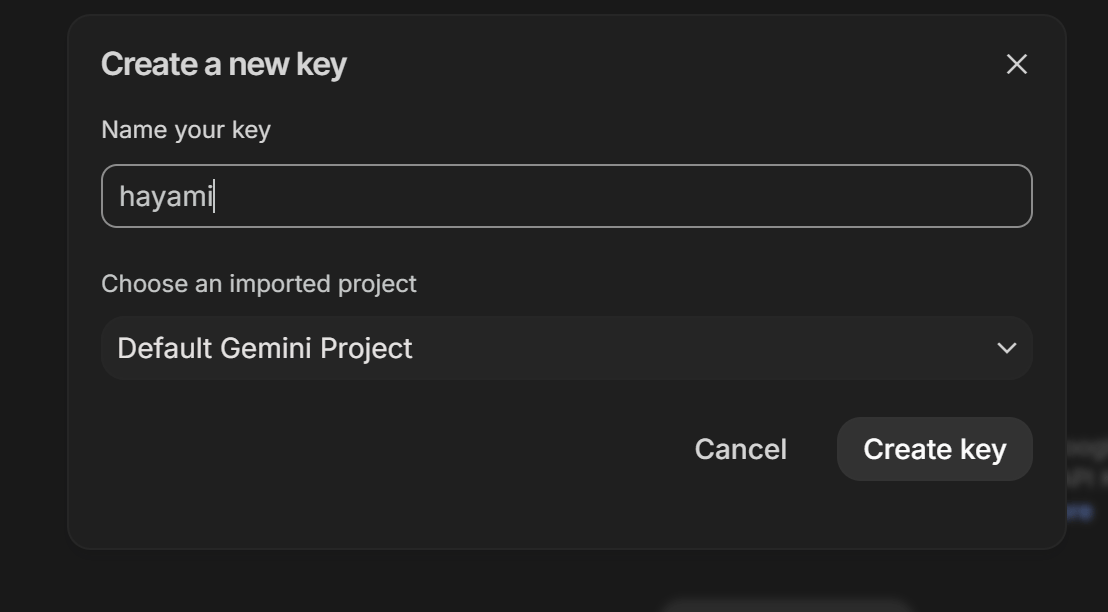
Name your key, then click create key.
Image
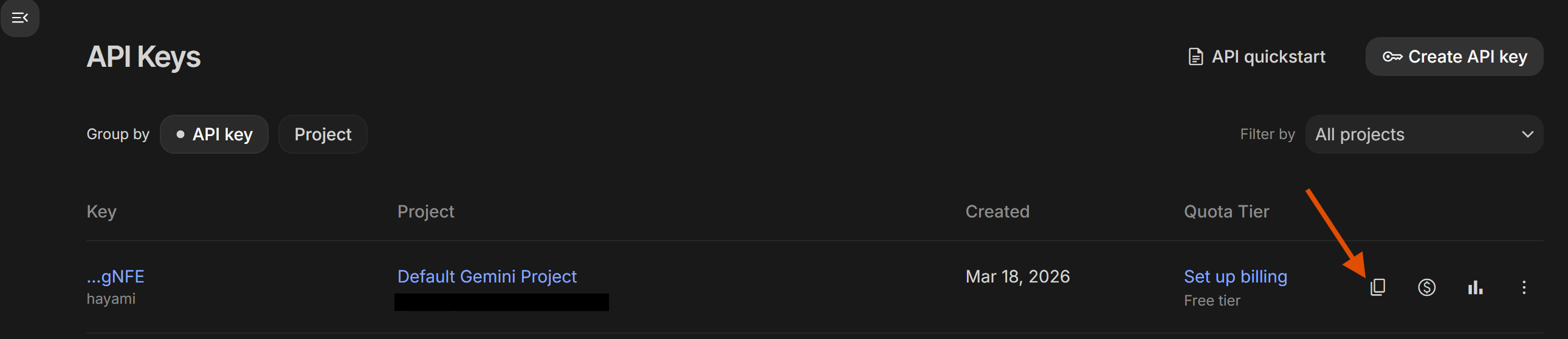
Key is ready to be used. Copy this key.
Image
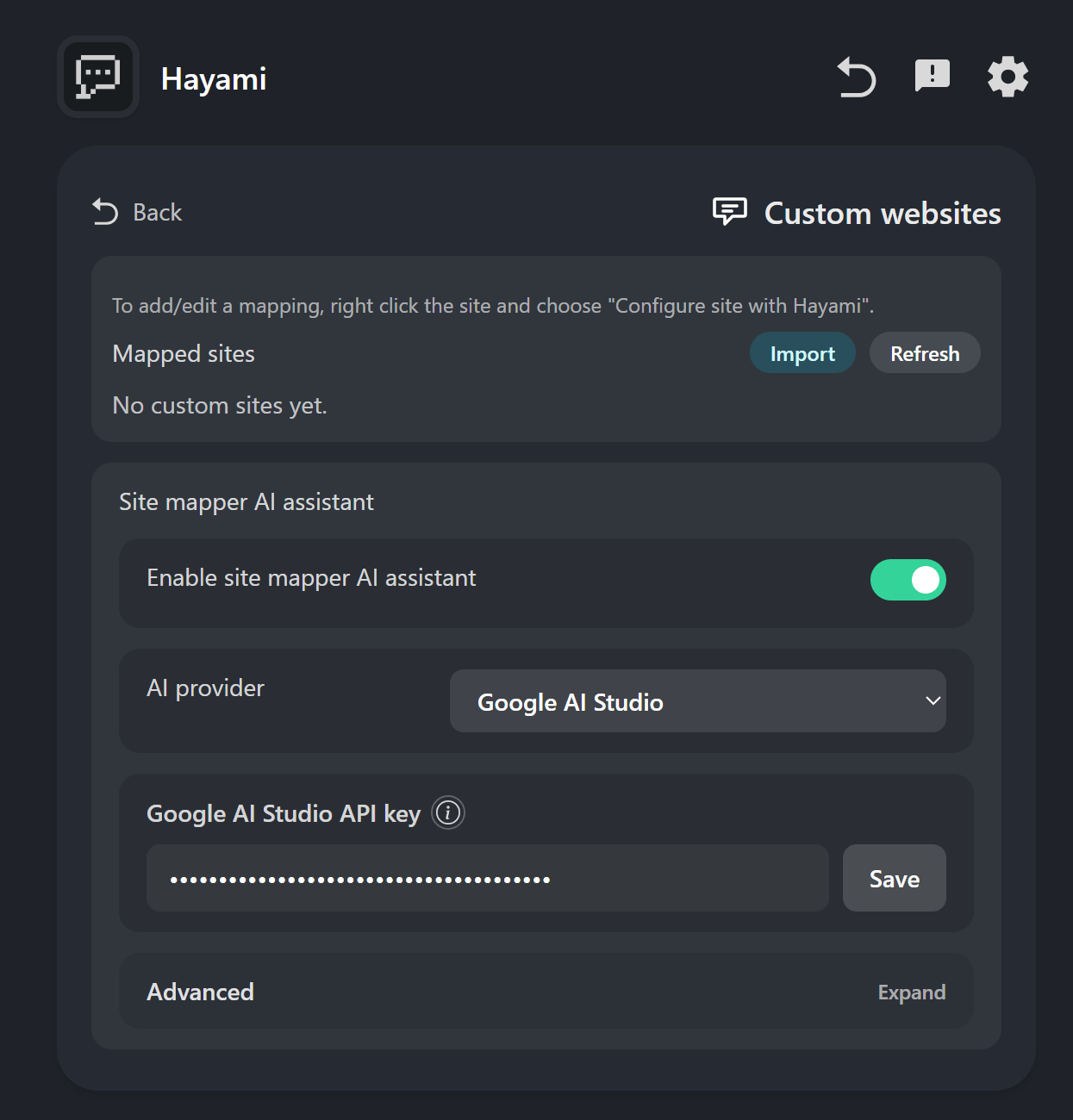
Adding the key to Hayami: Under Hayami > Settings > Custom websites, scroll down to the bottom, and choose ‘Google AI Studio’, and enter your API key copied from Google AI Studio, and hit Save.
Image

Mistral AI

This will require verification of a phone number to use this service.
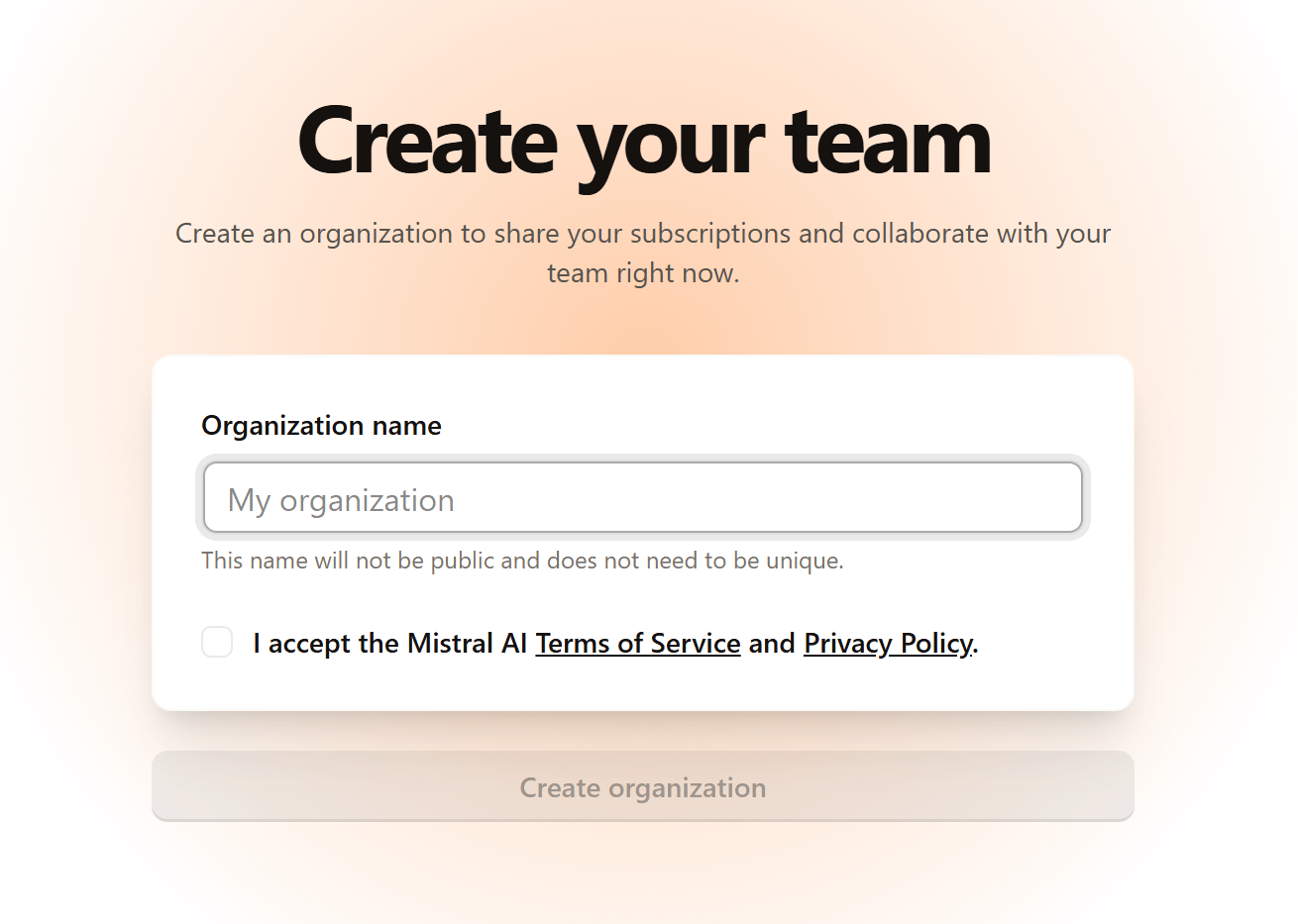
To get your API key, go to https://console.mistral.ai/home. Name your organization what you’d like it to be, and acknowledge the terms and related privacy information before continuing.
Image
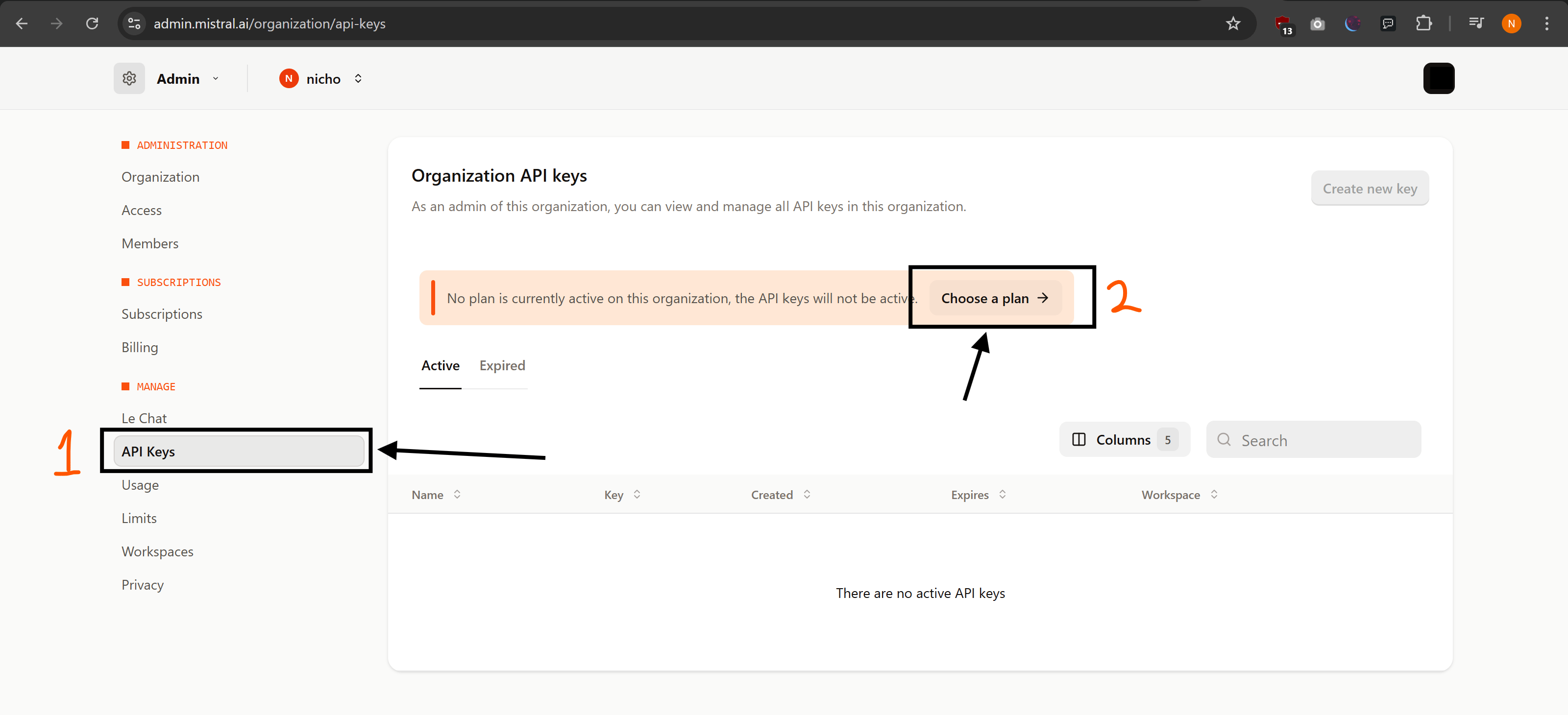
Click ‘API keys’, ‘Choose a plan’.
Image
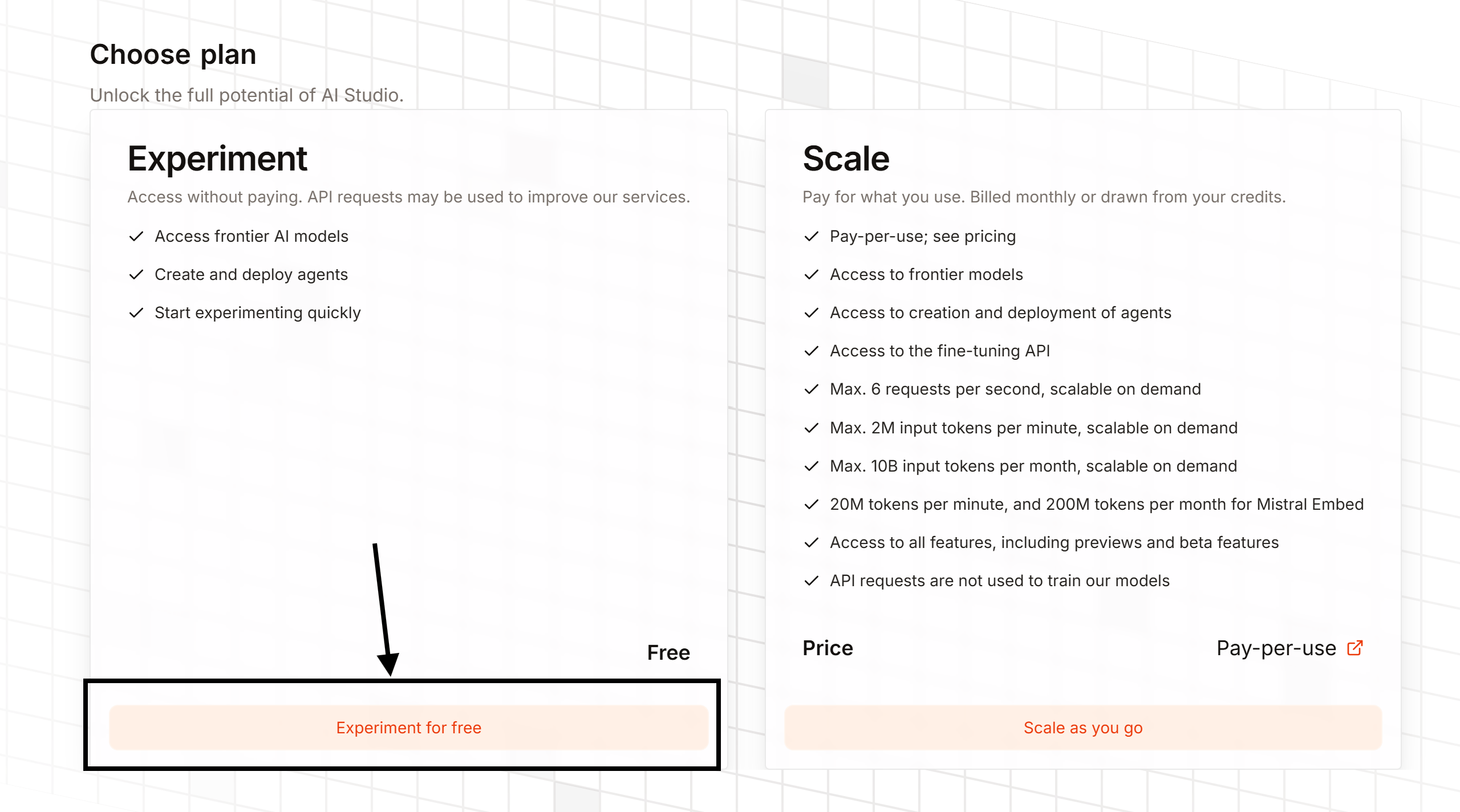
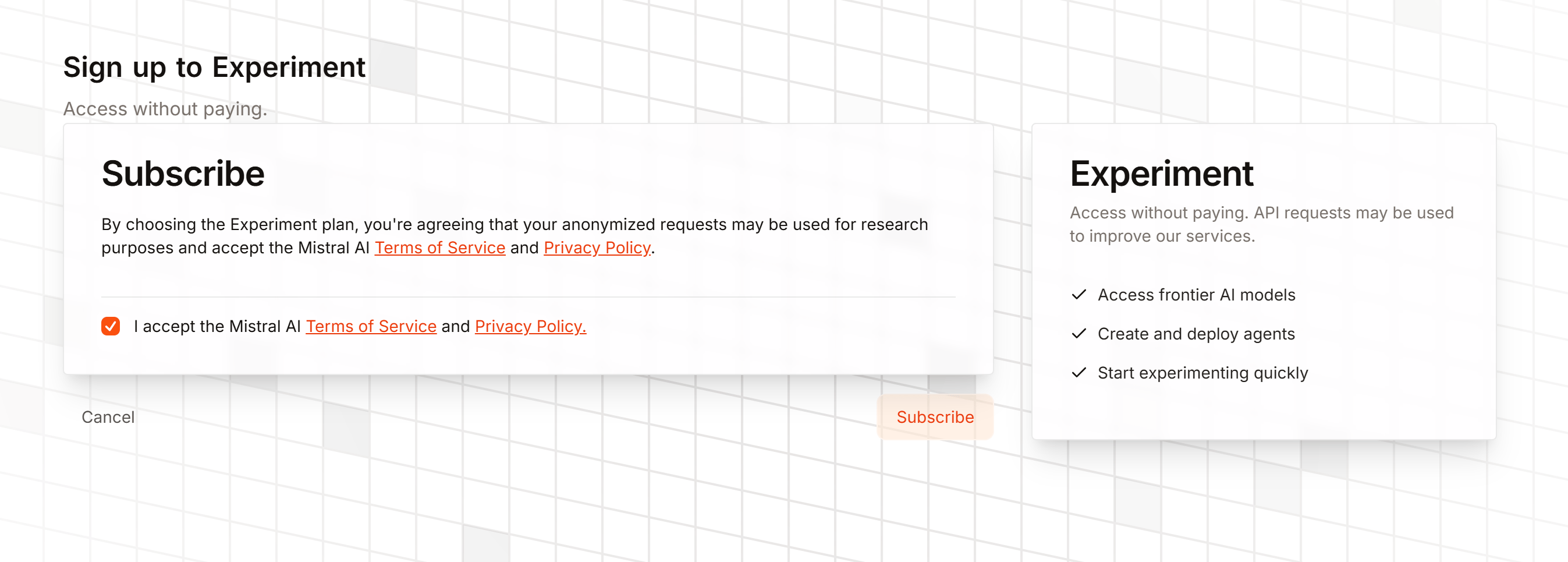
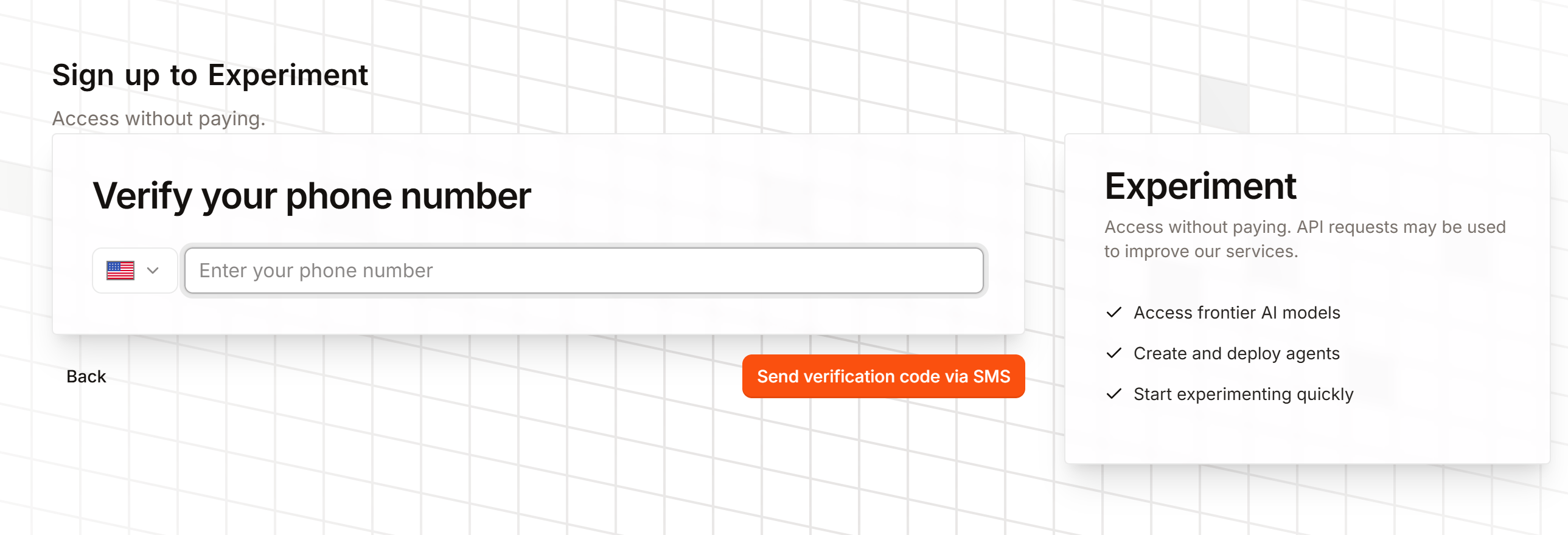
Choose ‘Experiment for free’, acknowledge the related terms, click ‘Subscribe’, and verify your phone number.
Image
Image
Image
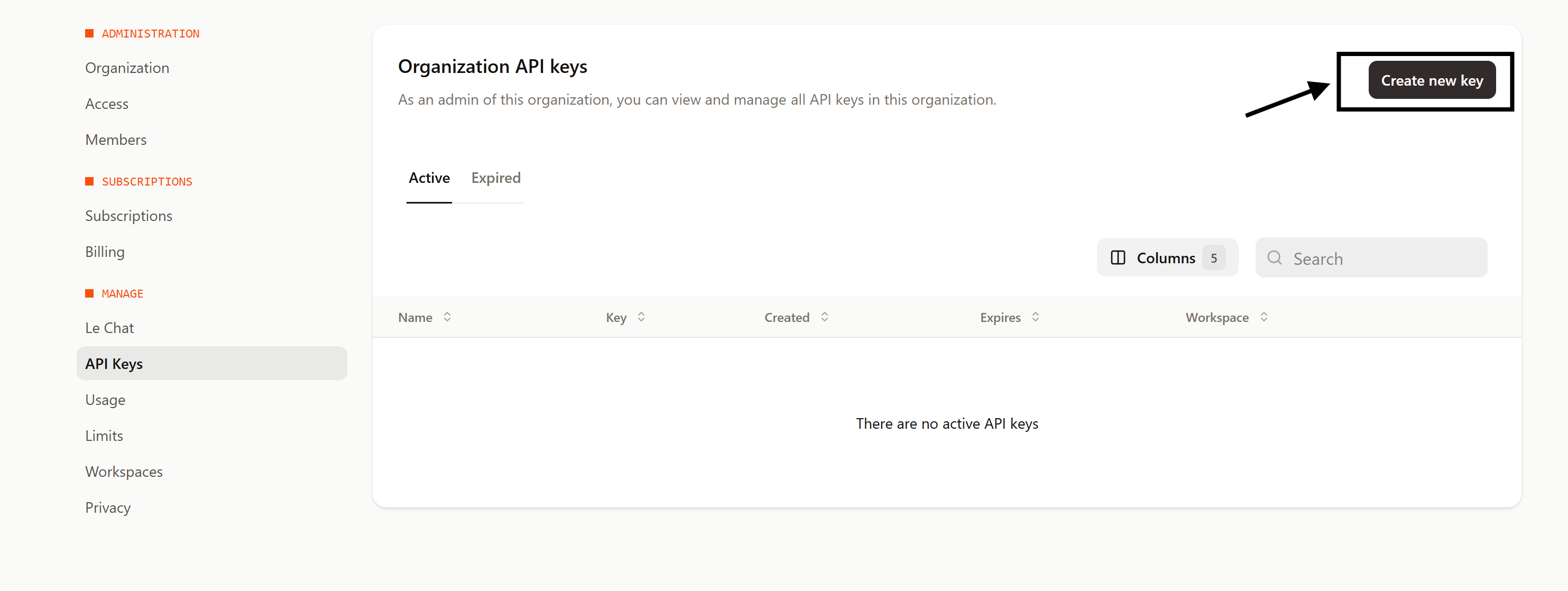
After all is setup, create your API key back on the API key page.
Image
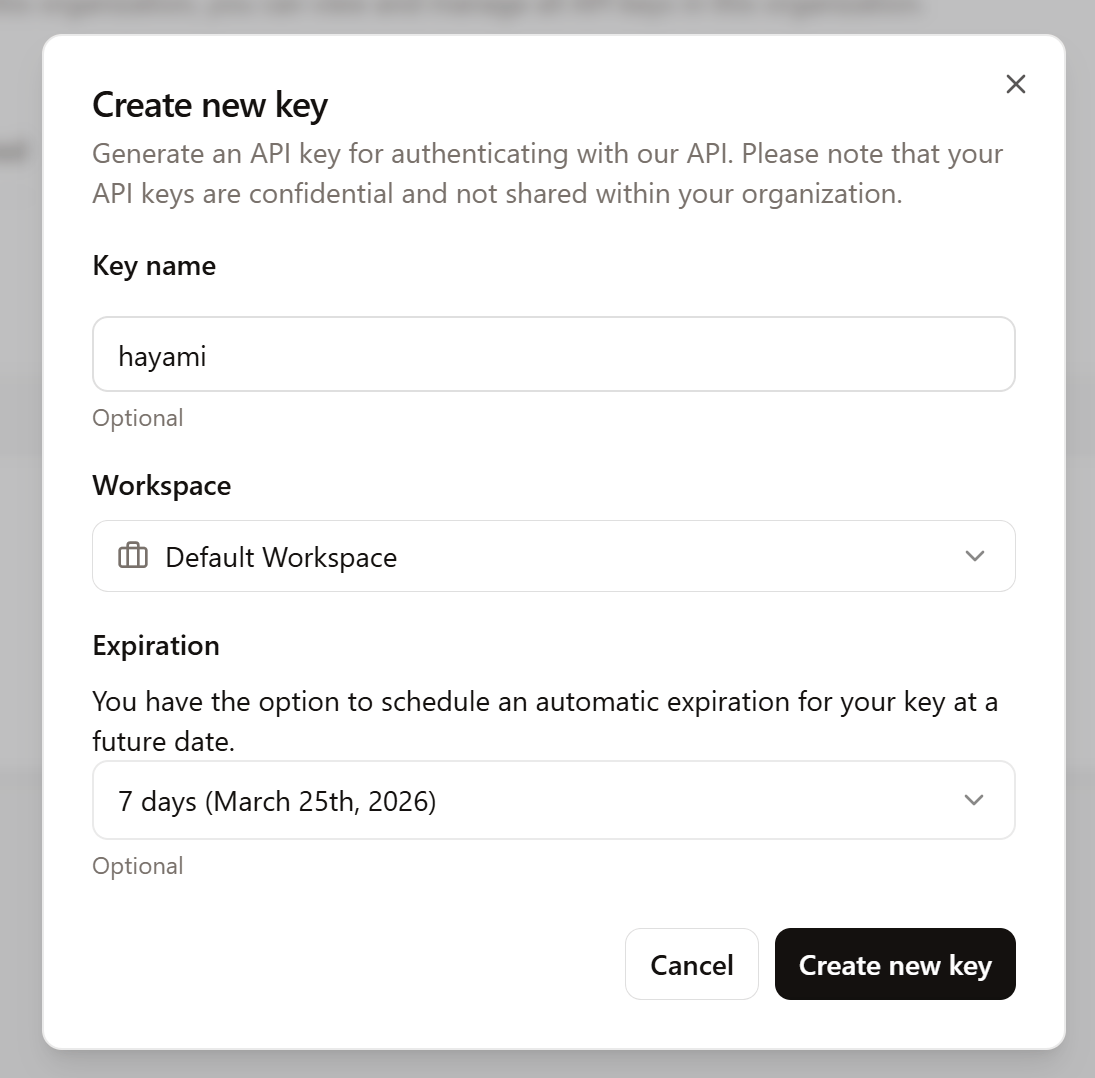
Name and set the expiry date (if you plan on using this temporarily, let’s say; you can click no expiry if you wish).
Image
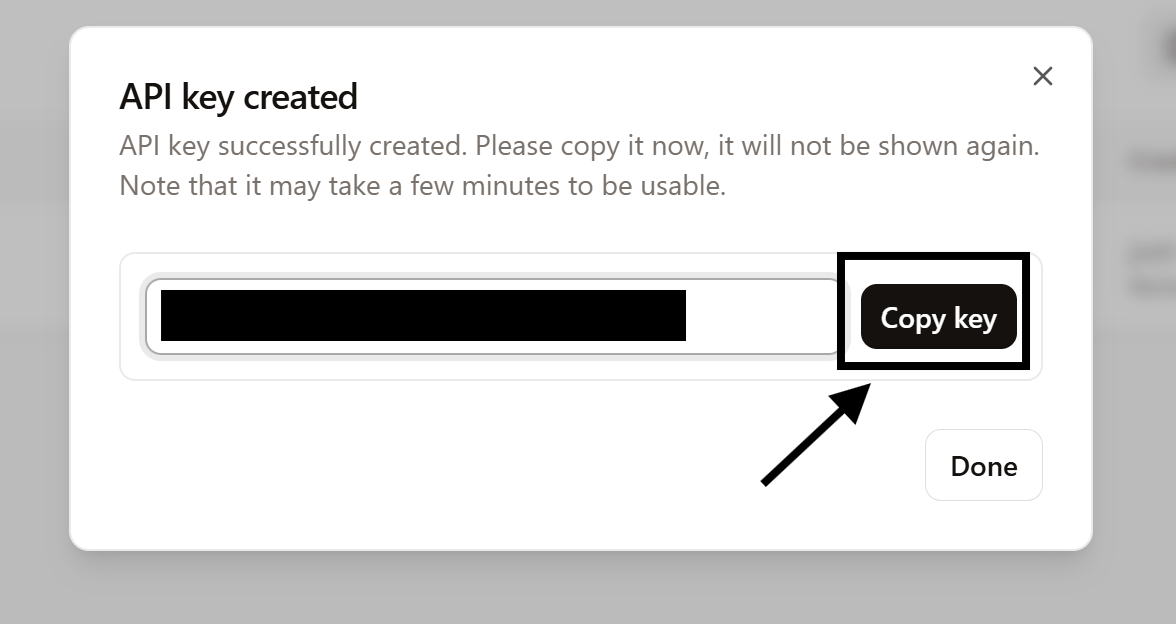
Once done, click ‘Create new key’. Then copy your key to be ready to be used in Hayami.
Image
Adding the key to Hayami: Under Hayami > Settings > Custom websites, scroll down to the bottom, and choose ‘Mistral AI’ under ‘AI provider’, & enter your API key copied from Mistral AI, and hit Save.
Image

OpenRouter

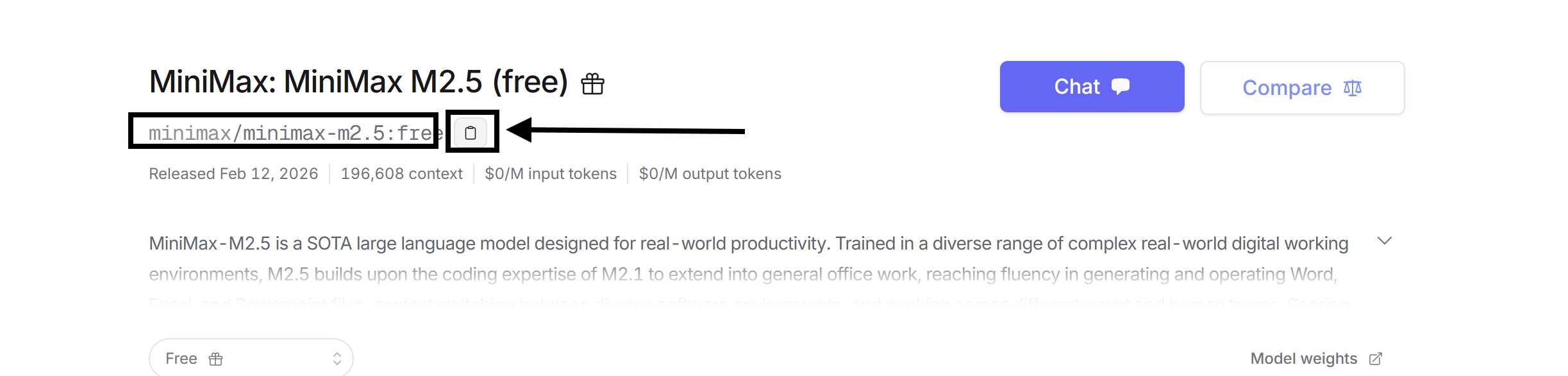
Not all models on OpenRouter are free. There’s a free category of models that may be free for a limited time. Due to this, you have to find the model IDs yourself.
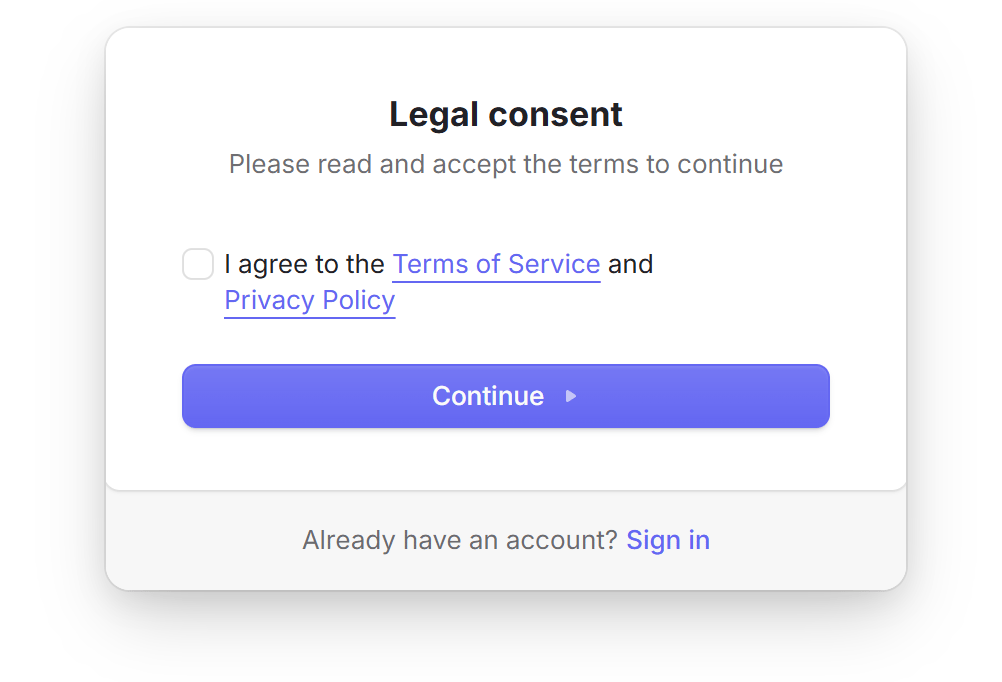
To get your API key, go to https://openrouter.ai/settings/keys. Acknowledge the terms and privacy before continuing if creating a new account.
Image
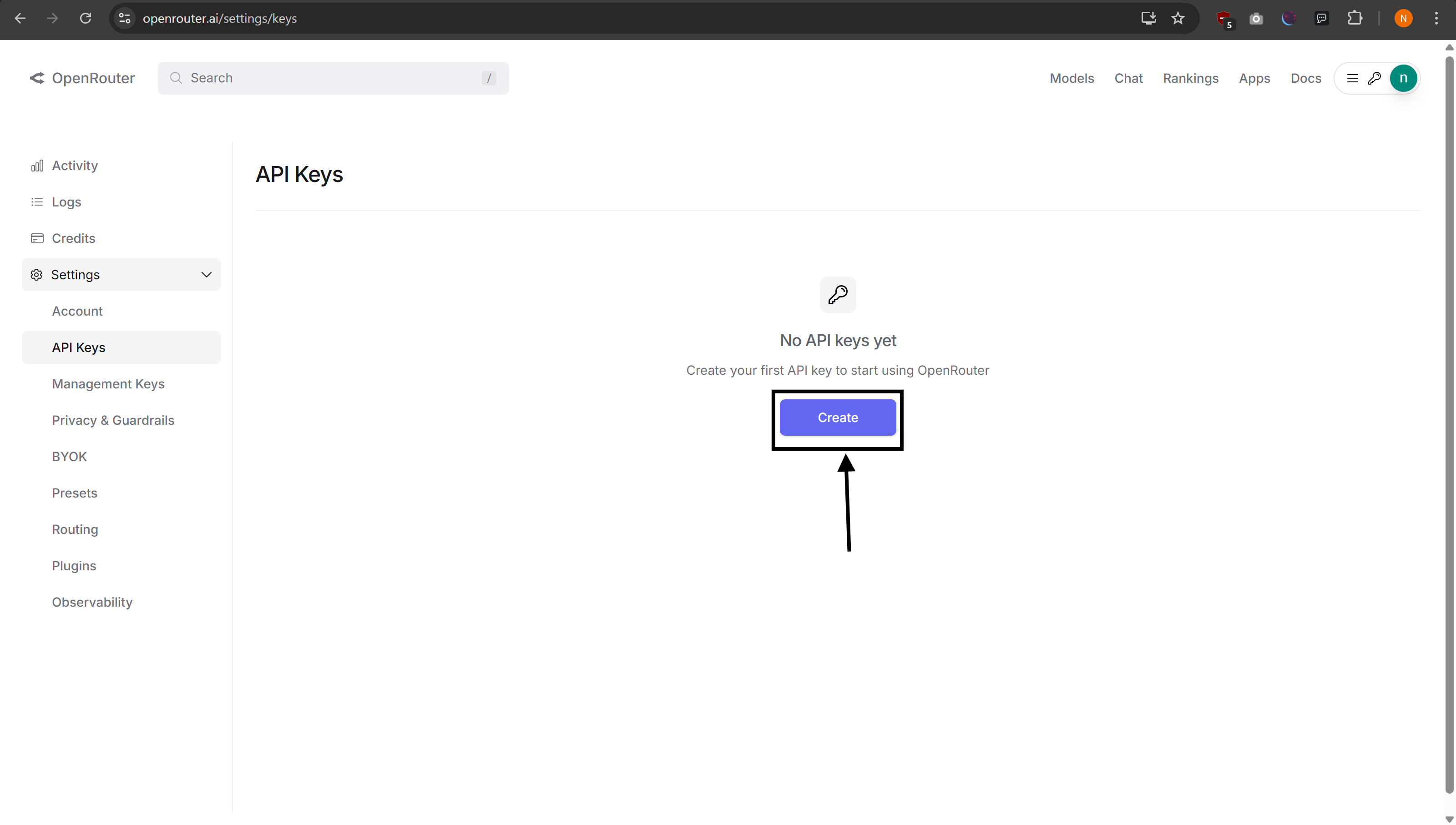
Create your API key by clicking ‘Create’.
Image
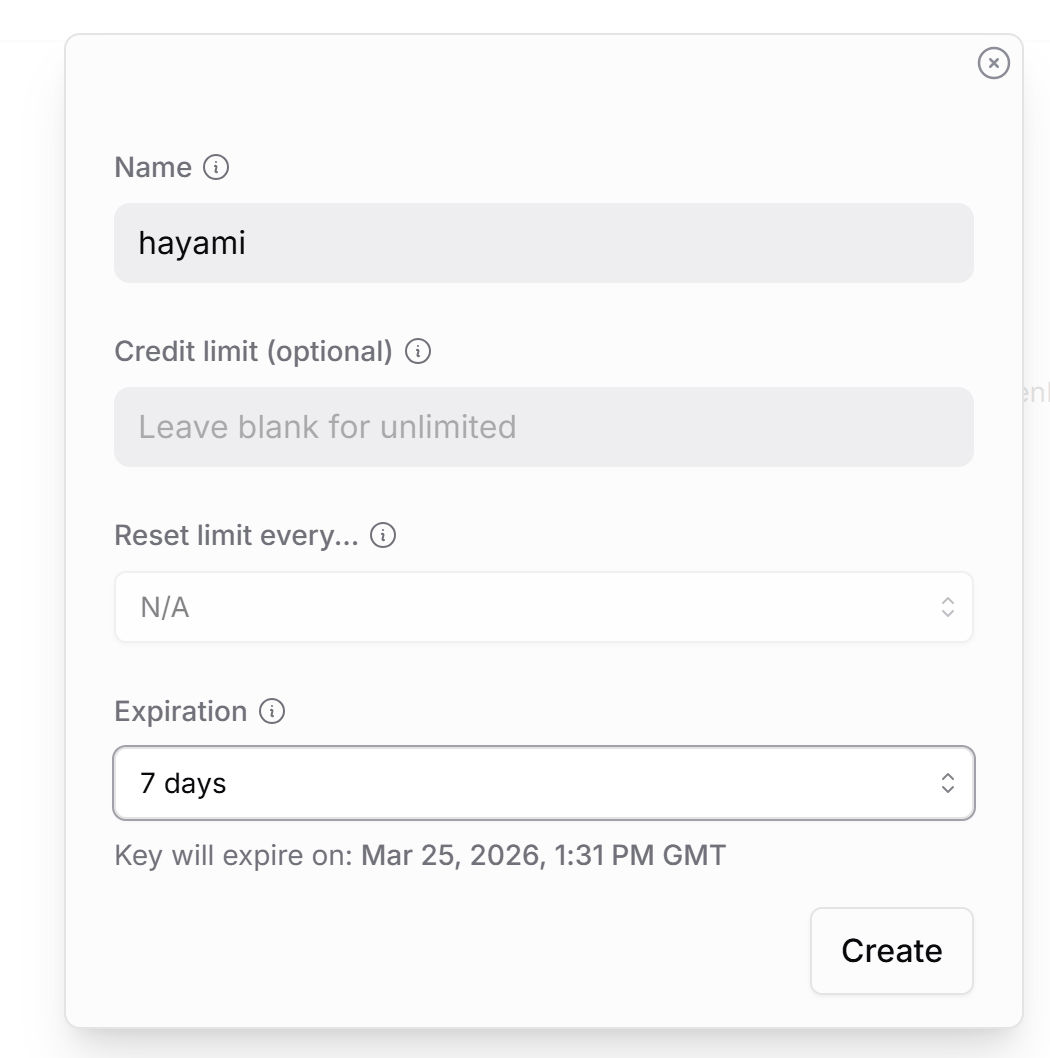
Give it a name and customise the expiry if you wish to use this feature temporarily, then hit ‘Create’.
Image
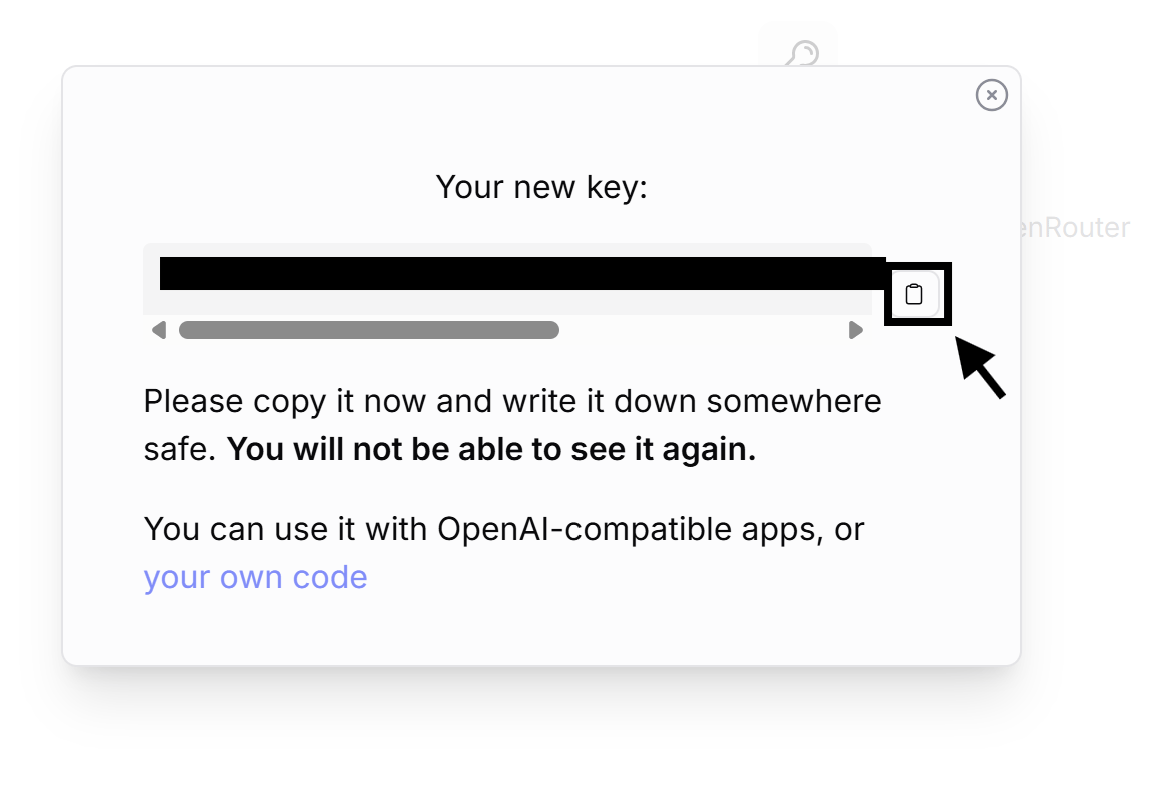
Copy your API key.
Image
Adding the key to Hayami: Under Hayami > Settings > Custom websites, scroll down to the bottom, and choose ‘OpenRouter’ under ‘AI provider’, and enter your API key copied from OpenRouter, and hit Save. To see free models, check out https://openrouter.ai/models?max_price=0, find a model on the page, and copy the model ID. Add this model ID under Custom websites > Advanced > Openrouter model.
Image

OpenAI-compatible API (e.g. Ollama)

In this example, Ollama will be used to demonstrate this capability to demonstrate OpenAI-compatible APIs. After installation, ensure Ollama is not open/fully closed before continuing. On Windows, you can do so by checking the taskbar icons bar via the bottom-right:
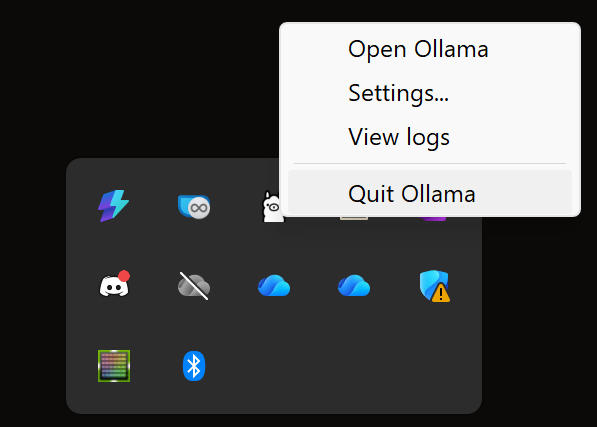
Image
After fully closing Ollama, for Windows, open up PowerShell and run the following command. This’ll change the environment variables on your system for Ollama to allow the Origin header to be from the Hayami Chrome extension as well as from Ollama directly. For any other operating systems, this guide (archive) by OnlyOffice should be used to aid with setting the correct variables.
Don’t run random commands found on the web; have a general understanding of their purpose before proceeding.
setx OLLAMA_ORIGINS "chrome-extension://nhkggpiaeaeeeimohfpchnjobbamfcbg/"
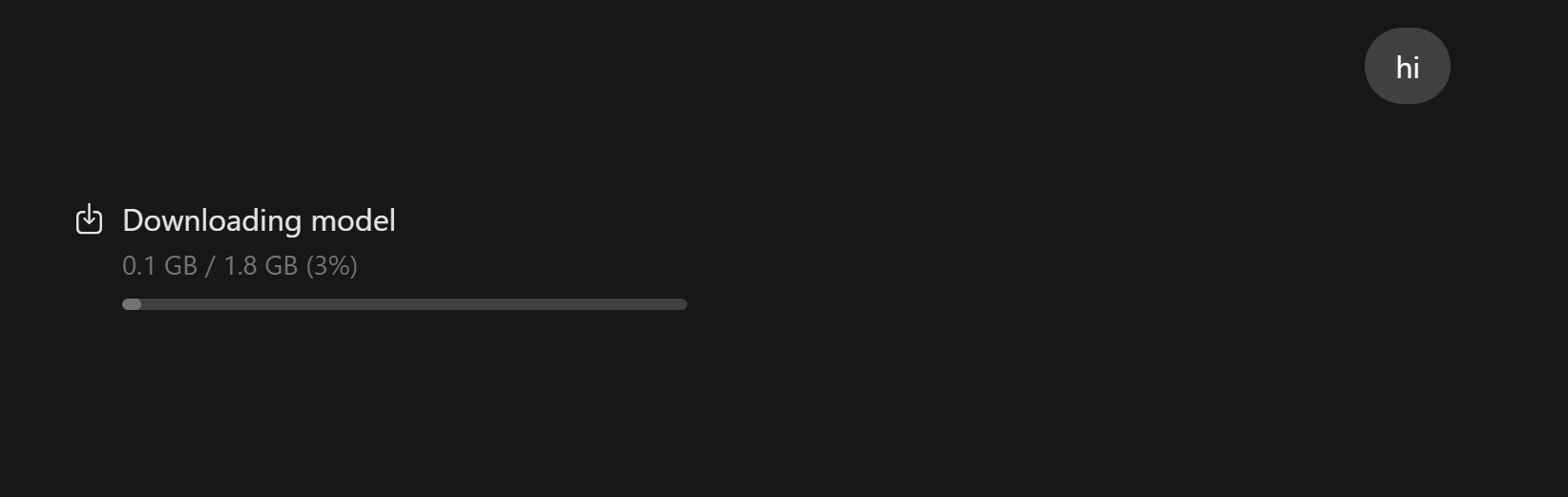
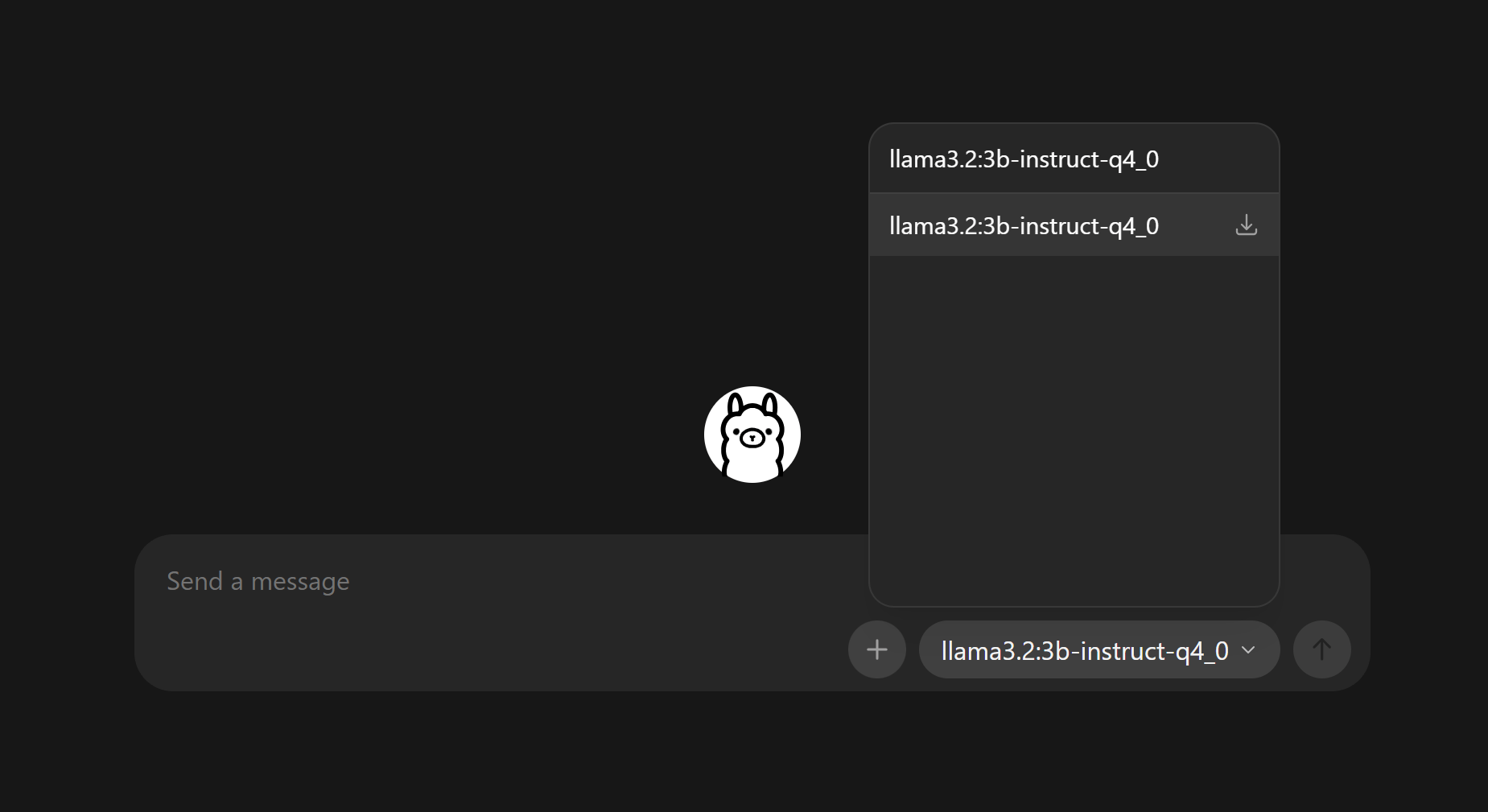
Open up Ollama again, and choose whatever model you prefer. I recommend using “qwen2.5:0.5b” which is 398MB storage-wise but gets the job done for analyzing HTML. Send “hi” to test that works.
Image
Image
Image
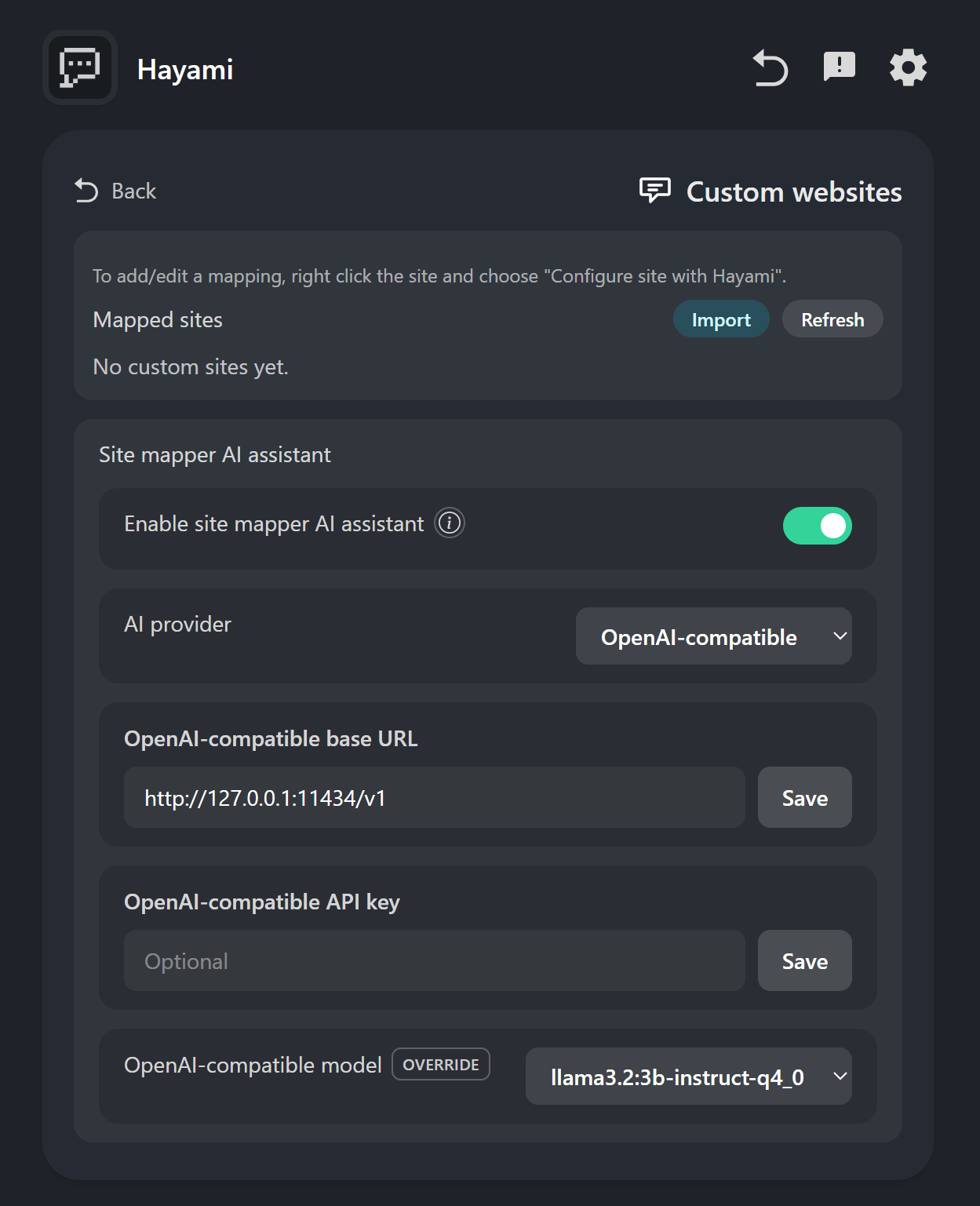
Adding these details to Hayami: Once finished, on Hayami > Settings > Custom websites, scroll down to the bottom, and choose ‘OpenAI-compatible’ under ‘AI provider’. For Ollama:
  • “OpenAI-compatible base URL” should be “http://127.0.0.1:11434/v1”.
  • “OpenAI-compatible API key” should be left blank.
  • “OpenAI-compatible model” should be your chosen model.
Image

Gemini Nano (Chrome-only)

Requires Chrome version 127+, approx 3GB storage, 4 GB of VRAM, & needs to be manually enabled.
Gemini Nano is a compact & lightweight offline generative AI model designed to run on-your-device without relying on cloud services, similar to using Ollama (as mentioned above). Since there’s a limit on input size due to it’s compact-nature, it uses compact DOM context instead of the raw HTML to identify what elements on the page could be an anime title/episode number, and then uses element selectors to find these elements on the page. Because of this, there may be some inaccuracies on some sites, but this should work out-the-box.
To enable Gemini Nano:
  1. Go to chrome://flags/
  2. Search for prompt-api-for-gemini-nano
  3. Set “Prompt API for Gemini Nano” to Enabled.
  4. (Optional, device-dependent) Search for optimization-guide-on-device-model and set it to Enabled BypassPrefRequirement.
  5. Restart your browser.
  6. Go to chrome://components/ and find “Optimization Guide On Device Model”, then click “Check for Update”.
You should now have Gemini Nano enabled after following those steps.
After following the above steps to enable Gemini Nano, it should work out-the-box after the model has been downloaded. To enable Gemini Nano on Hayami: Settings > Custom websites, scroll down to the bottom, and choose ‘Gemini Nano’ under ‘AI provider’.