> ## Documentation Index
> Fetch the complete documentation index at: https://docs.hayami.moe/llms.txt
> Use this file to discover all available pages before exploring further.
# Image previews
> What are image previews, and how to properly configure them on Hayami.
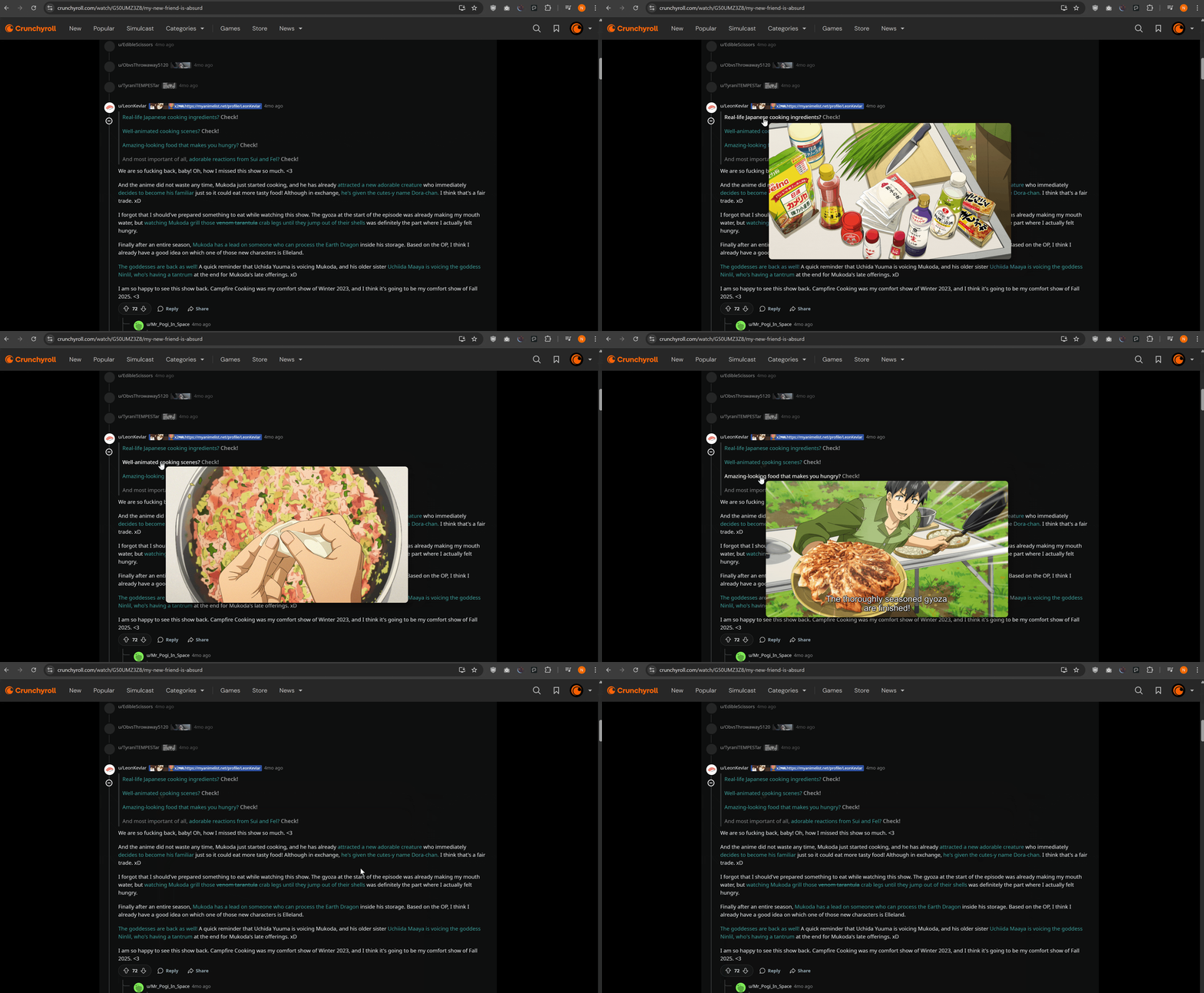
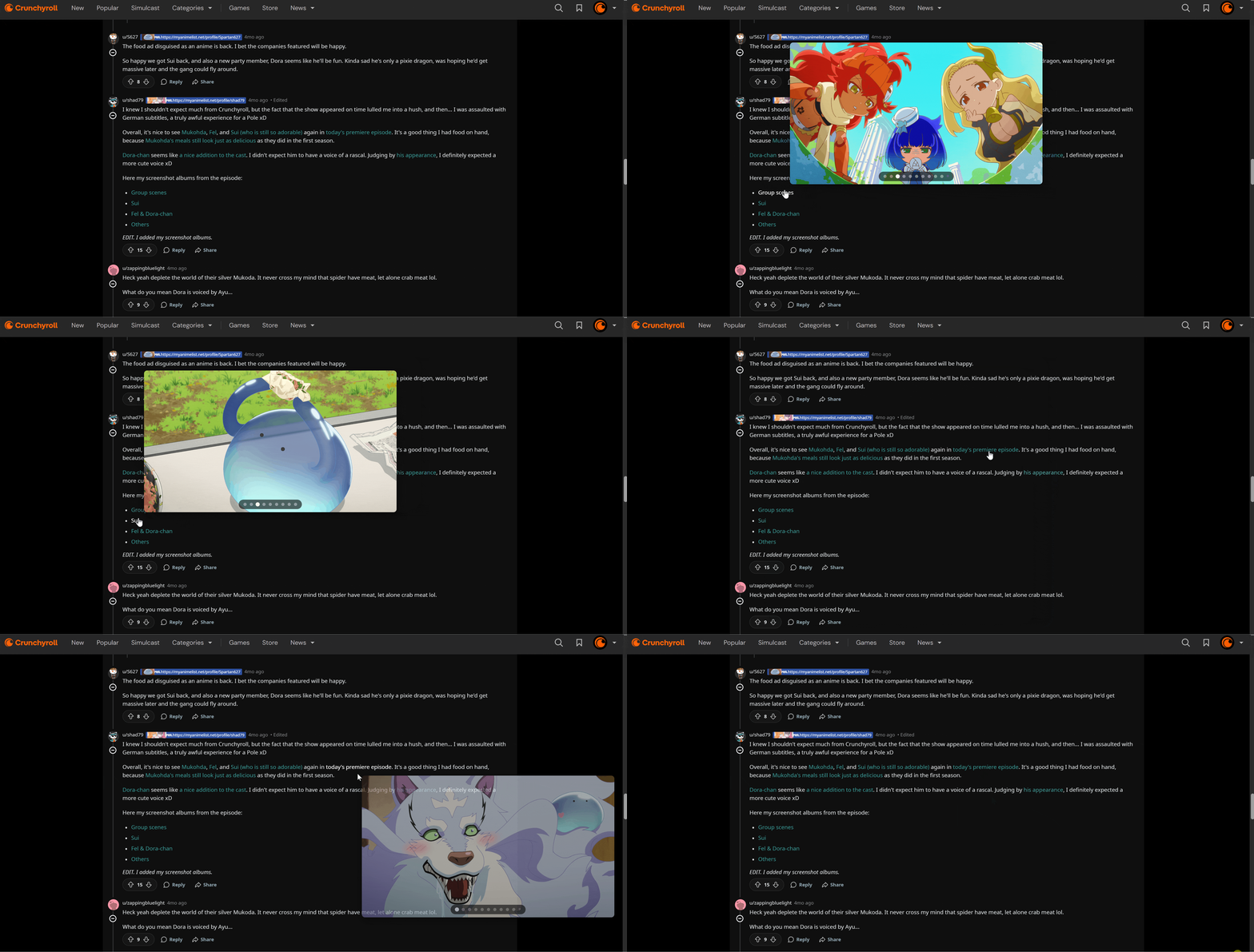
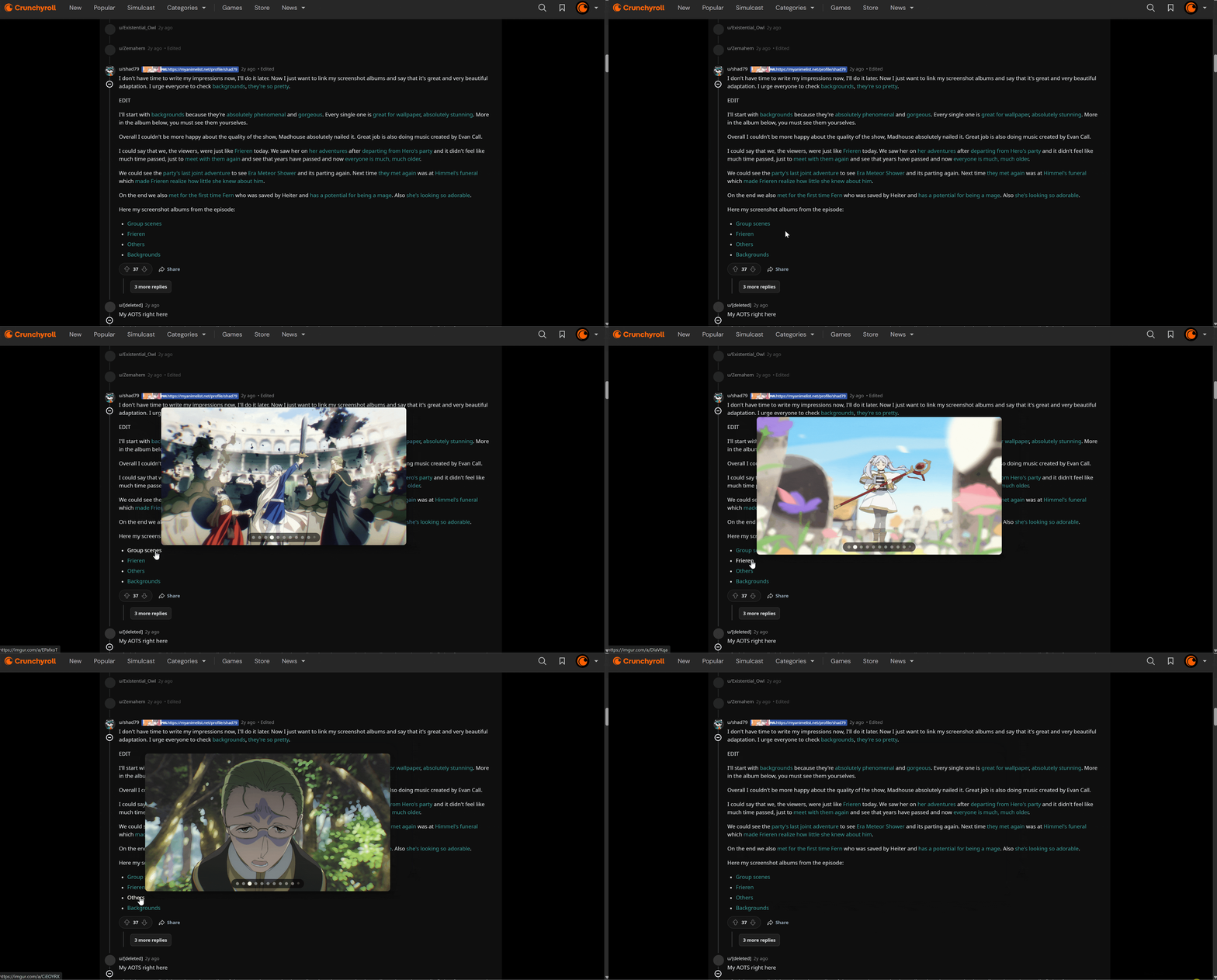
Image previews allow you to, on-hover, view the image or images associated with an Imgur, ImageChest, or postimages link. **When you've hovered over a link associated with a single image, these don't require an API key (usually) from any provider as they can be viewed & embedded straight off the bat.** However, for albums, these require interacting with the image APIs to get the images associated with an album. After using your API keys, you should be able to see image albums embedded in Hayami.
 ## How to enable image preview functionality
Image previews from Imgur should already work out the box, but the option to override the API keys for this functionality is added in if desired. ImageChest, though, requires an API key to get images from albums. This will require an ImageChest account.
### How to get an Imagechest API Key
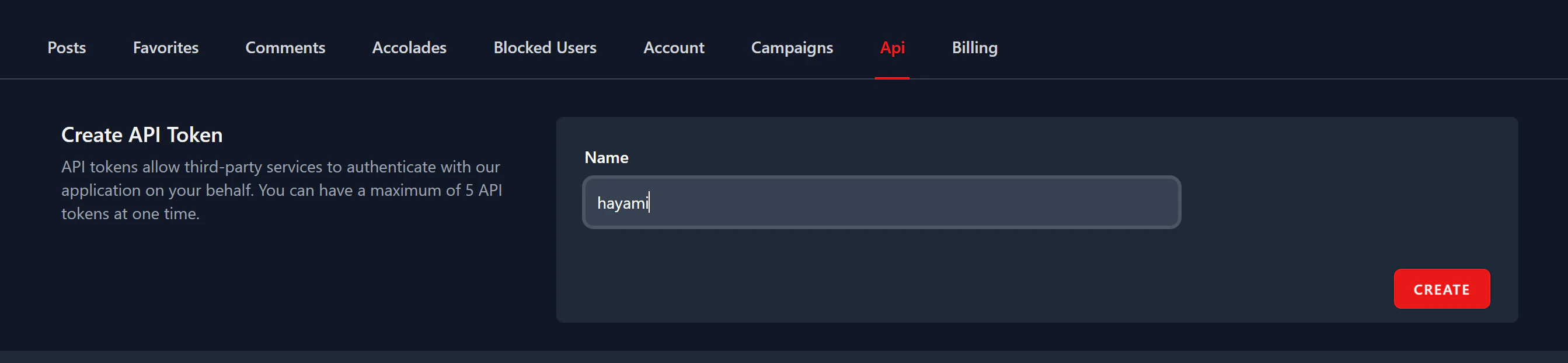
Imagechest API keys can be generated from [https://imgchest.com/profile/api](https://imgchest.com/profile/api), given you've got an Imagechest account. Pop inside the 'Name' field what you'd like to remember your API key by (so, Hayami, etc), hit 'Create', and you should get your generated API Key.
## How to enable image preview functionality
Image previews from Imgur should already work out the box, but the option to override the API keys for this functionality is added in if desired. ImageChest, though, requires an API key to get images from albums. This will require an ImageChest account.
### How to get an Imagechest API Key
Imagechest API keys can be generated from [https://imgchest.com/profile/api](https://imgchest.com/profile/api), given you've got an Imagechest account. Pop inside the 'Name' field what you'd like to remember your API key by (so, Hayami, etc), hit 'Create', and you should get your generated API Key.
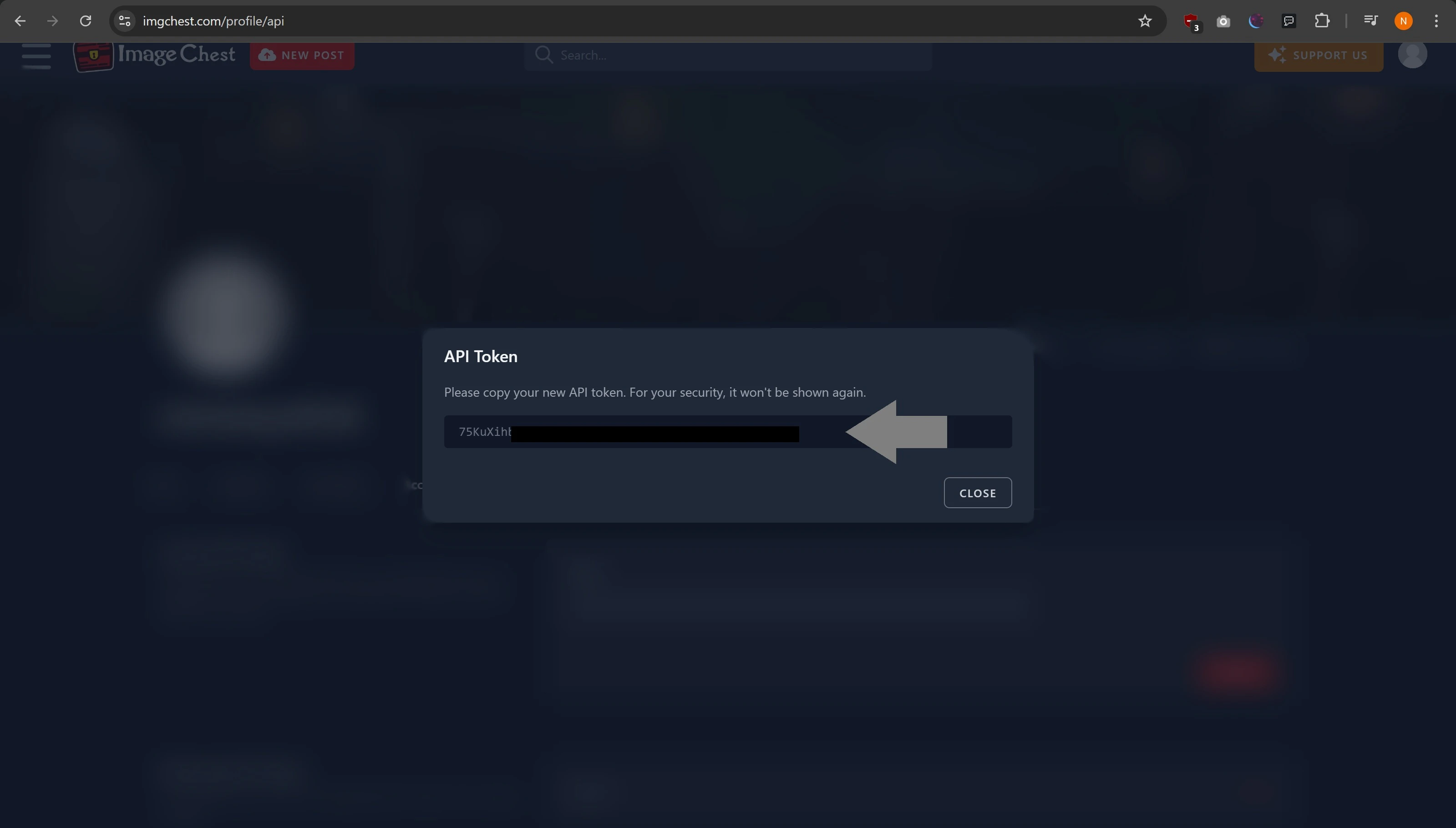 The whole token above is the API Token, which you should copy and place into **Hayami > Settings > Image previews > ImgChest API key**. Ensure you enable image previews if it's not already turned on. Once you've done that, image previews for Imagechest links should now perform properly.
In albums, going to the next image can be done by clicking the Down/Right arrow on your keyboard, both via the popup and on-click previews.
The whole token above is the API Token, which you should copy and place into **Hayami > Settings > Image previews > ImgChest API key**. Ensure you enable image previews if it's not already turned on. Once you've done that, image previews for Imagechest links should now perform properly.
In albums, going to the next image can be done by clicking the Down/Right arrow on your keyboard, both via the popup and on-click previews.
 ### How to get an Imgur API Key
This guide is intended for people already with Imgur API keys, since Imgur has ceased the creation of new Imgur API applications. **No Imgur key?** **Imgur should already work out the box with Hayami**.
All that's required is your client ID directly from the Imgur API. If you go to [https://imgur.com/account/settings/apps](https://imgur.com/account/settings/apps), copy your 'Client ID'.
### How to get an Imgur API Key
This guide is intended for people already with Imgur API keys, since Imgur has ceased the creation of new Imgur API applications. **No Imgur key?** **Imgur should already work out the box with Hayami**.
All that's required is your client ID directly from the Imgur API. If you go to [https://imgur.com/account/settings/apps](https://imgur.com/account/settings/apps), copy your 'Client ID'.
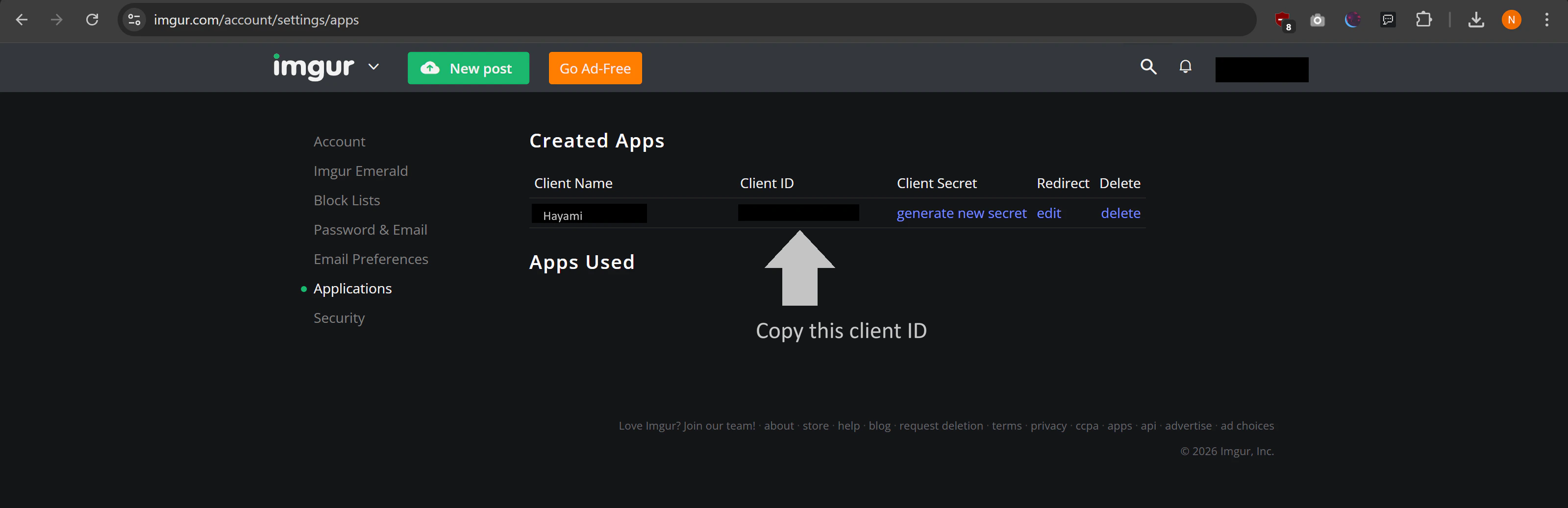 Place into **Hayami > Settings > Image previews > Imgur Client ID**. Ensure you enable image previews if it's not already turned on. Once you've done that, image previews for Imgur links should now perform properly.
 ## How to configure advanced options in image previews
To be more respecting to different preferences, Hayami has provided a multitude of delivery options for serving images from specific image hosts. To configure these options, click 'Expand' under 'Advanced' under Image previews. Hayami allows you to change:
* **Frontend** - This is the site visited *after* clicking onto an image link. This is configured to be the image site as-default usually.
* **Image CDN** - This is how images are *delivered* to you, either through the image site directly, or through a Content Delivery Network, which streamlines and optimises delivery of images directly.
These options can be freely configured & changed to suit different preferences. Advanced options are only triggered for specific image hosts which are clearly labelled per-option under this menu.
## How to configure advanced options in image previews
To be more respecting to different preferences, Hayami has provided a multitude of delivery options for serving images from specific image hosts. To configure these options, click 'Expand' under 'Advanced' under Image previews. Hayami allows you to change:
* **Frontend** - This is the site visited *after* clicking onto an image link. This is configured to be the image site as-default usually.
* **Image CDN** - This is how images are *delivered* to you, either through the image site directly, or through a Content Delivery Network, which streamlines and optimises delivery of images directly.
These options can be freely configured & changed to suit different preferences. Advanced options are only triggered for specific image hosts which are clearly labelled per-option under this menu.