> ## Documentation Index
> Fetch the complete documentation index at: https://docs.hayami.moe/llms.txt
> Use this file to discover all available pages before exploring further.
# Getting started
> Step-by-step guide on how to setup the extension; things you may have missed, and the more straightforward parts.
Hayami can be downloaded and installed straight from the [Chrome Web Store](https://chromewebstore.google.com/detail/hayami-anime-comments-dis/nhkggpiaeaeeeimohfpchnjobbamfcbg) and [Firefox Addons](https://addons.mozilla.org/en-GB/firefox/addon/hayami/). After installation, a new tab will be made guiding you through the setup.
## Setting up Hayami
### Connecting accounts
Through the setup, you may be asked to connect some accounts. Hayami interfaces with these platforms from your browser directly to show you episode discussions. All discussion platforms have their own terms and privacy policies respectfully, which should be regarded before use.
Before you can do this, you need to allow Hayami permission to access discussion platforms and sites it relies on to provide comments to you. This varies based on your browser.
For Chrome users, just hit 'Allow' on the 'Allow access to discussion platforms' step on the prompt to allow Hayami access to provide comments to you.
 For Firefox users, just hit 'Allow' on the 'Allow access to discussion platforms' step on the prompt to allow Hayami access to provide comments to you.
 You may see warnings that you need to accept permissions to sites when onboarding. Ensure you click 'Allow Always' when Safari asks you to allow access to requested sites. **Made a mistake?** Click on Hayami, and Hayami will have a popup asking for permissions. (Why?)
 Alternatively, you can go into Hayami's permission settings on Safari and allow Hayami access to all websites. This is shown below. You can change this at any time, and you can also configure the sites Hayami runs on through Hayami's settings.
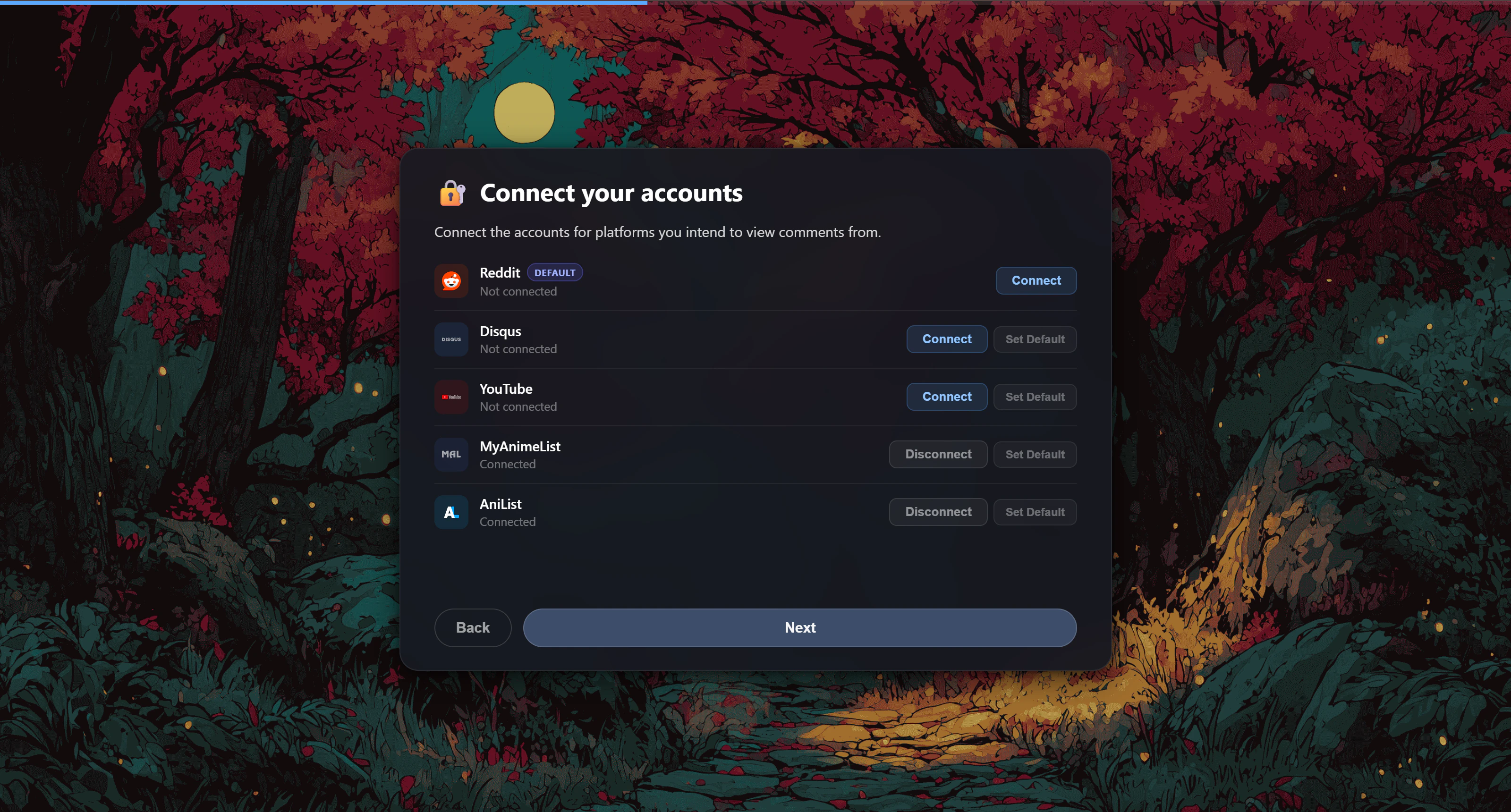
 Reddit (r/anime discussion threads) is set to as-default which covers a wide range of discussions since 2011, but you can freely change your default discussion platform at any time through Hayami's settings, or even switch discussion platforms while on-page when Hayami loads up if you choose to. Connect the accounts you plan to use, and set the one you'd plan to use most as your default.
 The extension will then ask for you to set up [Image previews](/image-previews), which, once setup, allows an on-hover image-viewing experience of albums from Imgur and Imagechest used on Reddit. Image previews works out-the-box with individual photos as well as both albums & single images from Imgur, without any setup by you. Though, if you want album support for Imagechest, all you need to provide is an Imagechest API Key. You can also set it up *later* through the extension popup, so feel free to skip this step if you wish.
.png?fit=max&auto=format&n=xCP-ZqR0V6oFtZlb&q=85&s=ce6ab2bb88ed7c2f05bc8f65c05ef68a) ### Some things you *definitely* need to know
Some advice for specific discussion platforms:
* **If using Reddit, *please* ensure you're logged in for a uninterrupted experience.** Not being logged in can cause rate limits according to your i.e. IP address. This sometimes may trigger Reddit to not return the discussion altogether, Hayami prompting you to login to continue.
* **If using Disqus, logging in allows (expanded) image embedding to work.** If you regularly encounter comments with images in them, they may be de-expanded by-default, requiring you to click-on the image icons to load them in. This is due to you being logged out. If logged in and they *still* don't appear, on the top-right of the embed, click on your name (where the login button once was) > 'Display Media', which should show it.
**Hayami can get mappings wrong**. Server-side Hayami collates anime discussions, and when you've gone onto an episode episode, this is used to find the correct anime and discussion episode. The bad news is sometimes this mapping will fail. Hayami's mapping isn't *perfect*, and may sometimes get your series or episode number incorrectly. There's many reasons for this, but one example is S2E1 may be Episode 25 somewhere else.
**The good news is you can manually set-once, and forget per-series this mapping yourself**. On all discussion platforms, you should see a "?" or "Wrong anime?" text in the upper-portion of the discussion platform. An illustration of both is shown down below.
### Some things you *definitely* need to know
Some advice for specific discussion platforms:
* **If using Reddit, *please* ensure you're logged in for a uninterrupted experience.** Not being logged in can cause rate limits according to your i.e. IP address. This sometimes may trigger Reddit to not return the discussion altogether, Hayami prompting you to login to continue.
* **If using Disqus, logging in allows (expanded) image embedding to work.** If you regularly encounter comments with images in them, they may be de-expanded by-default, requiring you to click-on the image icons to load them in. This is due to you being logged out. If logged in and they *still* don't appear, on the top-right of the embed, click on your name (where the login button once was) > 'Display Media', which should show it.
**Hayami can get mappings wrong**. Server-side Hayami collates anime discussions, and when you've gone onto an episode episode, this is used to find the correct anime and discussion episode. The bad news is sometimes this mapping will fail. Hayami's mapping isn't *perfect*, and may sometimes get your series or episode number incorrectly. There's many reasons for this, but one example is S2E1 may be Episode 25 somewhere else.
**The good news is you can manually set-once, and forget per-series this mapping yourself**. On all discussion platforms, you should see a "?" or "Wrong anime?" text in the upper-portion of the discussion platform. An illustration of both is shown down below.

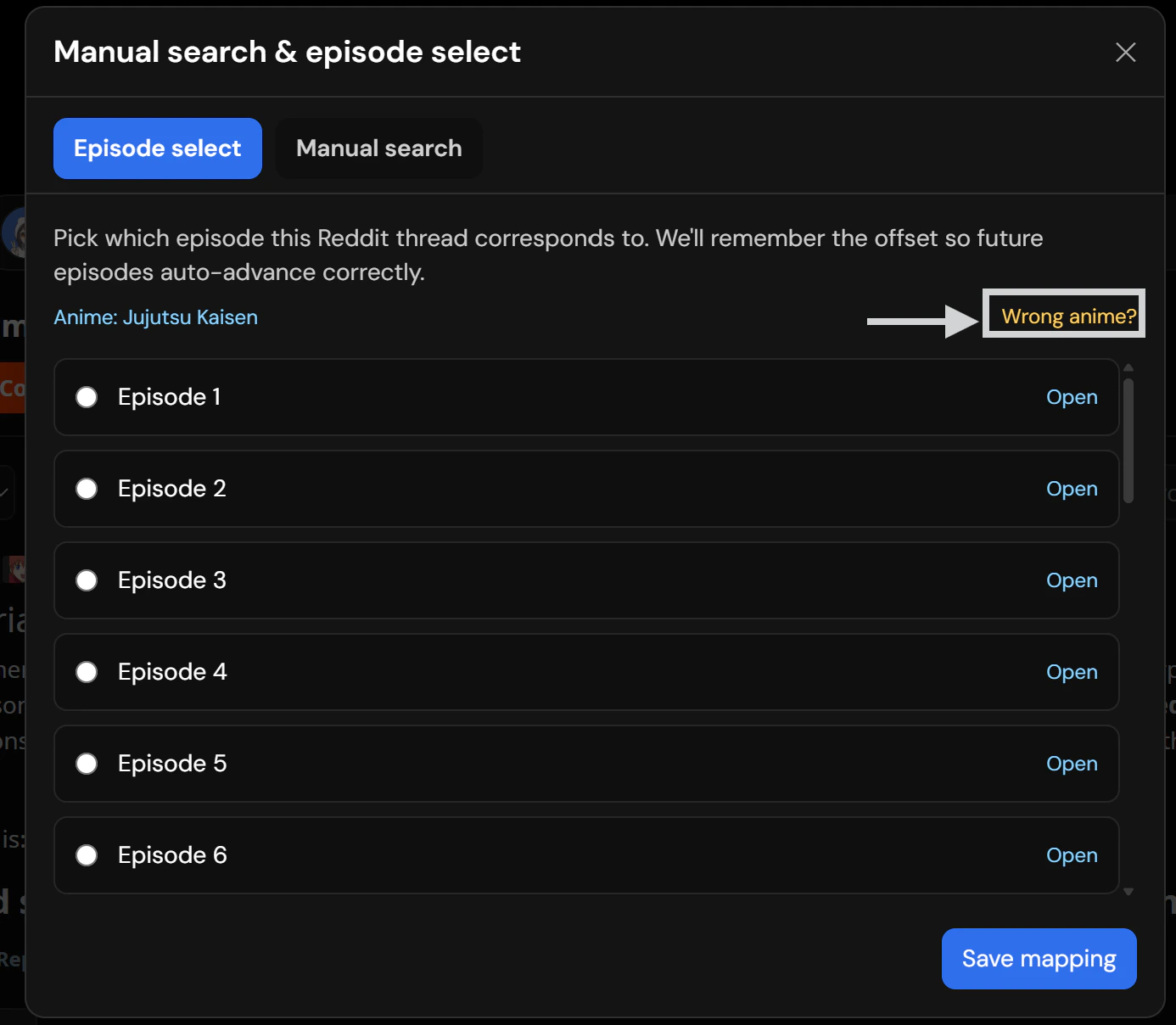
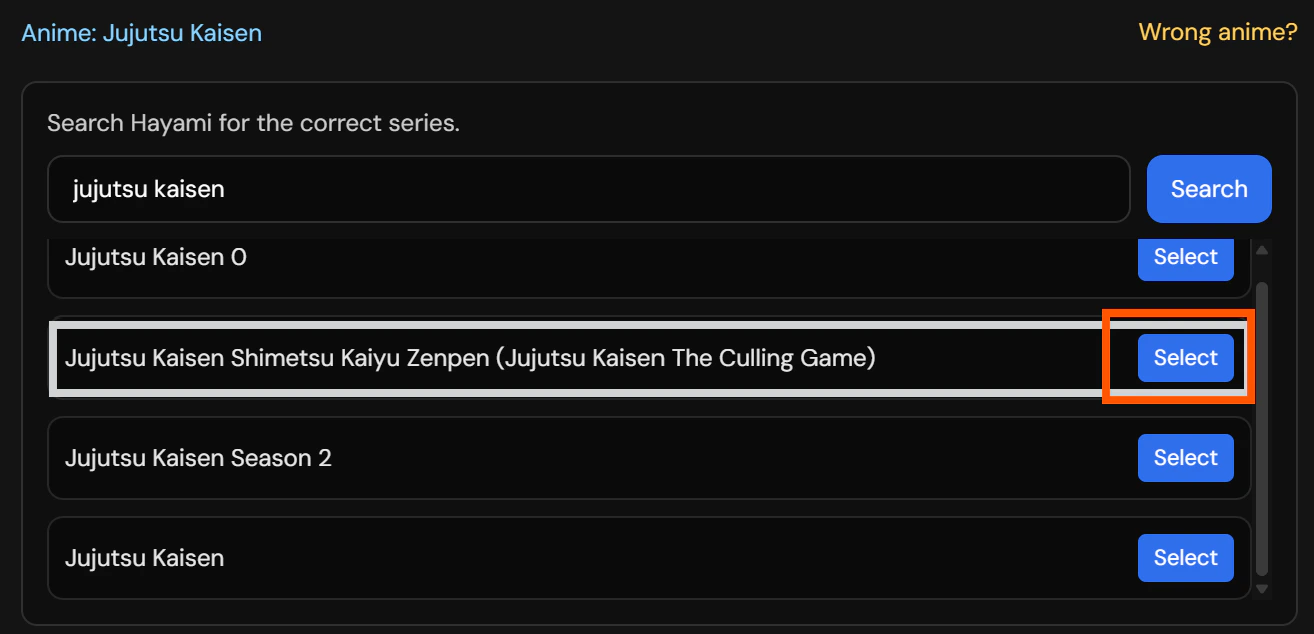
 On-click, you can manually map this anime to the correct series and episode. For instance, in the Reddit example above, Jujutsu Kaisen The Culling Game Episode 1 is getting mapped as Episode 2. The instructions below guide you through this instance.
Check if the anime name shown is correct. Jujutsu Kaisen Season 1 isn't my current season, so I'm clicking 'Wrong anime?'.
On-click, you can manually map this anime to the correct series and episode. For instance, in the Reddit example above, Jujutsu Kaisen The Culling Game Episode 1 is getting mapped as Episode 2. The instructions below guide you through this instance.
Check if the anime name shown is correct. Jujutsu Kaisen Season 1 isn't my current season, so I'm clicking 'Wrong anime?'.
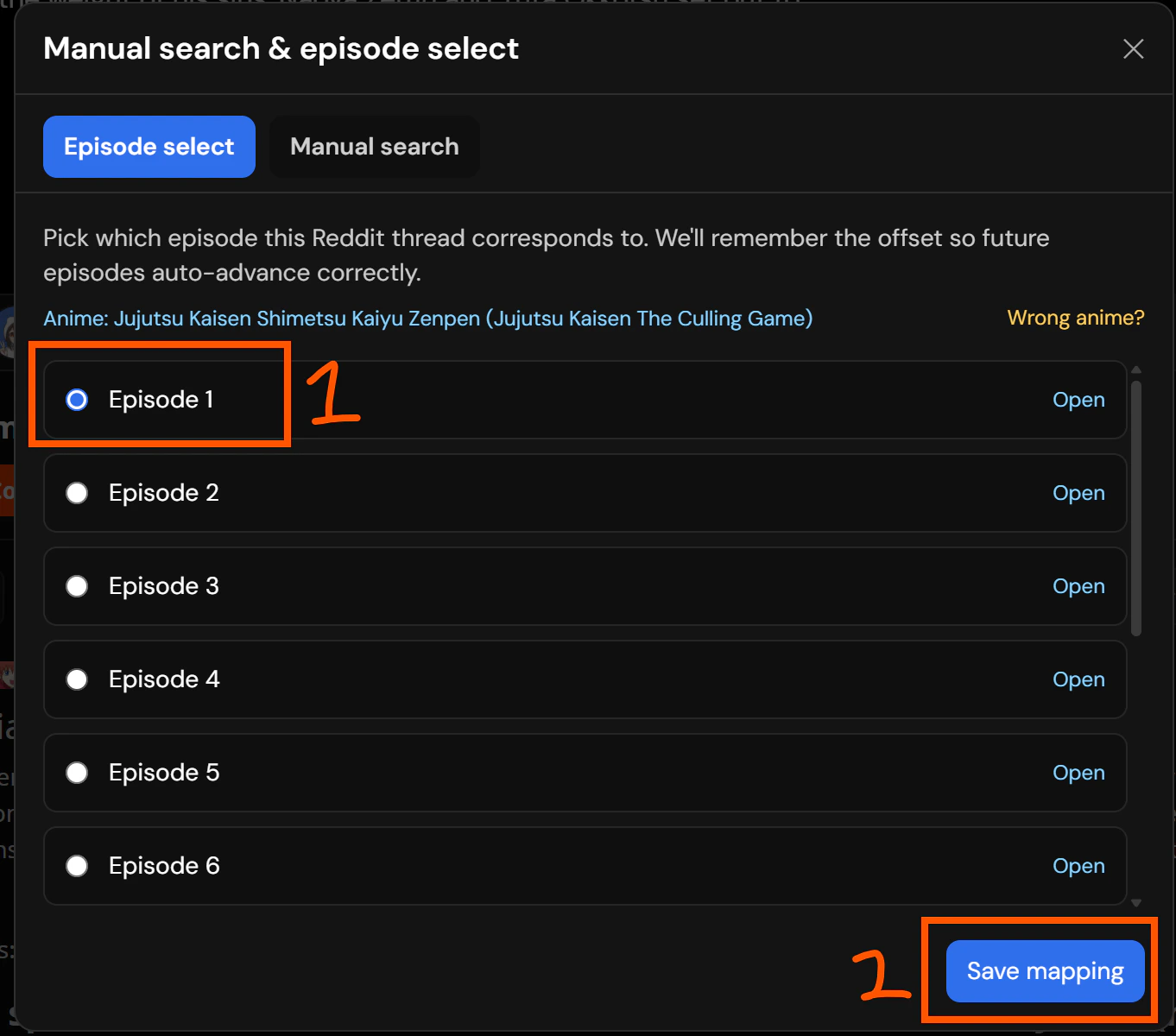
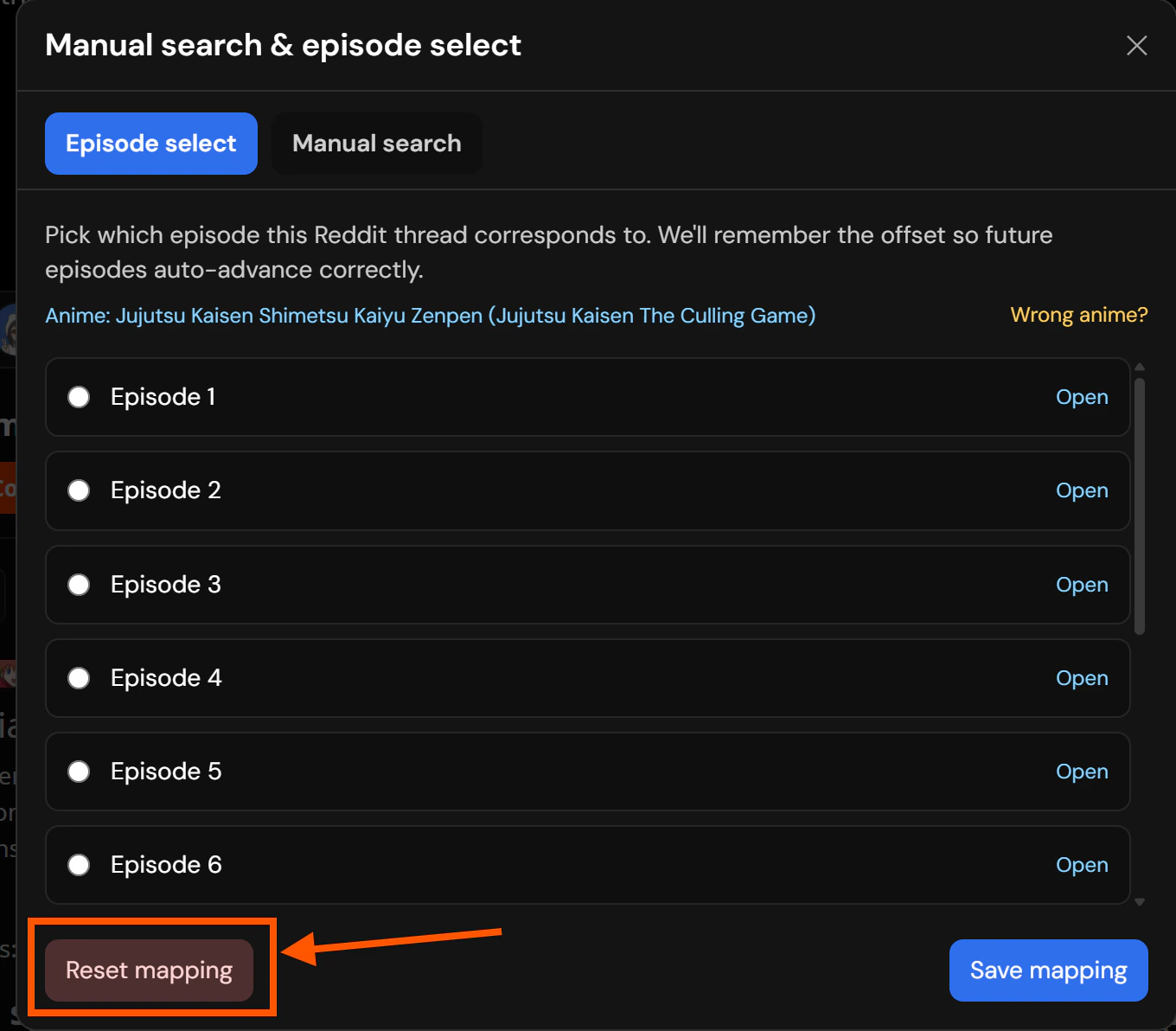 After that, for the rest of the series/season, it should map properly. Over time, this interface design *may* change so don't fret if the designs differ.
### All done from there.
That's it, you're all setup and the extension from that point should work out-the-box on Hayami's supported sites, which currently are **Crunchyroll** and **Netflix**.
This doesn't mean you can't setup Hayami elsewhere. With [custom websites](/custom-websites), any site can support Hayami, setup by you. It's extremely simple to use the custom website functionality since it has an element picker, allowing you to pick the anime name, episode number and where you want it mounted with ease.
Custom websites can be imported & exported freely, so individuals or communities that do like to fiddle with the best layout for comments can experiment, and share those about for others to import as they please. You can also sync from these as well through [Custom Sites Sync](/custom-websites#how-to-sync-with-custom-website-mappings).
After that, for the rest of the series/season, it should map properly. Over time, this interface design *may* change so don't fret if the designs differ.
### All done from there.
That's it, you're all setup and the extension from that point should work out-the-box on Hayami's supported sites, which currently are **Crunchyroll** and **Netflix**.
This doesn't mean you can't setup Hayami elsewhere. With [custom websites](/custom-websites), any site can support Hayami, setup by you. It's extremely simple to use the custom website functionality since it has an element picker, allowing you to pick the anime name, episode number and where you want it mounted with ease.
Custom websites can be imported & exported freely, so individuals or communities that do like to fiddle with the best layout for comments can experiment, and share those about for others to import as they please. You can also sync from these as well through [Custom Sites Sync](/custom-websites#how-to-sync-with-custom-website-mappings).